Space Limit and Zone Shape
The shapes of Space Limit / Zone are set according to the following:
|
Item
|
Description
|
|
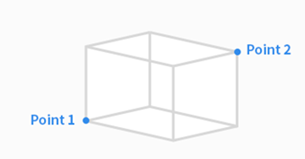
Cuboid
|
The shape of Space Limit / Zone is set as a cuboid.
|
|
Tilted Cuboid
|
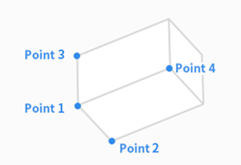
The shape of Space Limit / Zone is set as a tilted cuboid.
-
Enter the reference point (Point 1), x-axis endpoint (Point 2), y-axis endpoint (Point 3), z-axis endpoint (Point 4) of the tilted cuboid and tap the Save Pose button.
-
The three lines (Point 1-Point2, Point 1-Point 3, Point 1-Point 4) must cross each other at right angles. (a deviation of +/- 5 degrees is acceptable)
-
Using the Constraint Motion of “Surface Lock” and “Axis Lock” based on Point 1 will help the robot obtain Point 2, Point 3 and Point 4 more easily.
|
|
Cylinder
|
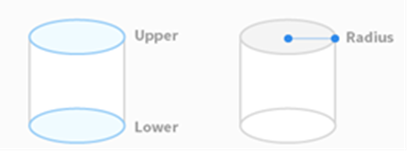
The shape of Space Limit / Zone is set as a cylindrical.
|
|
Multi-plane Box
|
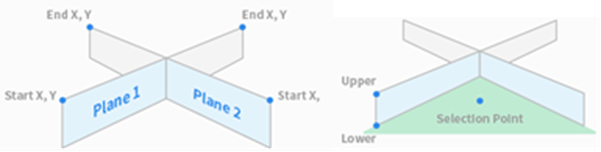
The shape of Space Limit / Zone is set as a multi-plane box.
-
Set the height of the top and bottom of the multi-plane box and press the Add Pose button to add a plane.
-
Select X and Y coordinates to set the direction of the plane and tap the Save Pose button. Up to six planes can be configured.
-
Set the coordinates for the points of the area to be configured.
|
|
Sphere
|
The shape of Space Limit / Zone is set as a sphere.
-
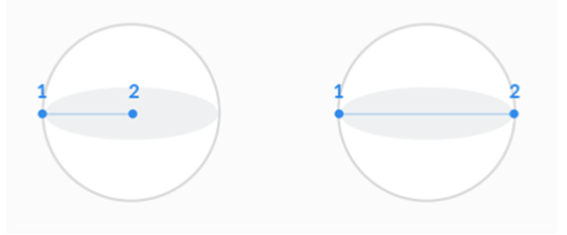
To configure the radius, enter the positions of the center point and endpoint of the sphere, and to configure the diameter, enter two endpoints of the sphere, then tap the Save Pose button.
|
