
Accessible menus can be limited according to user roles.
-
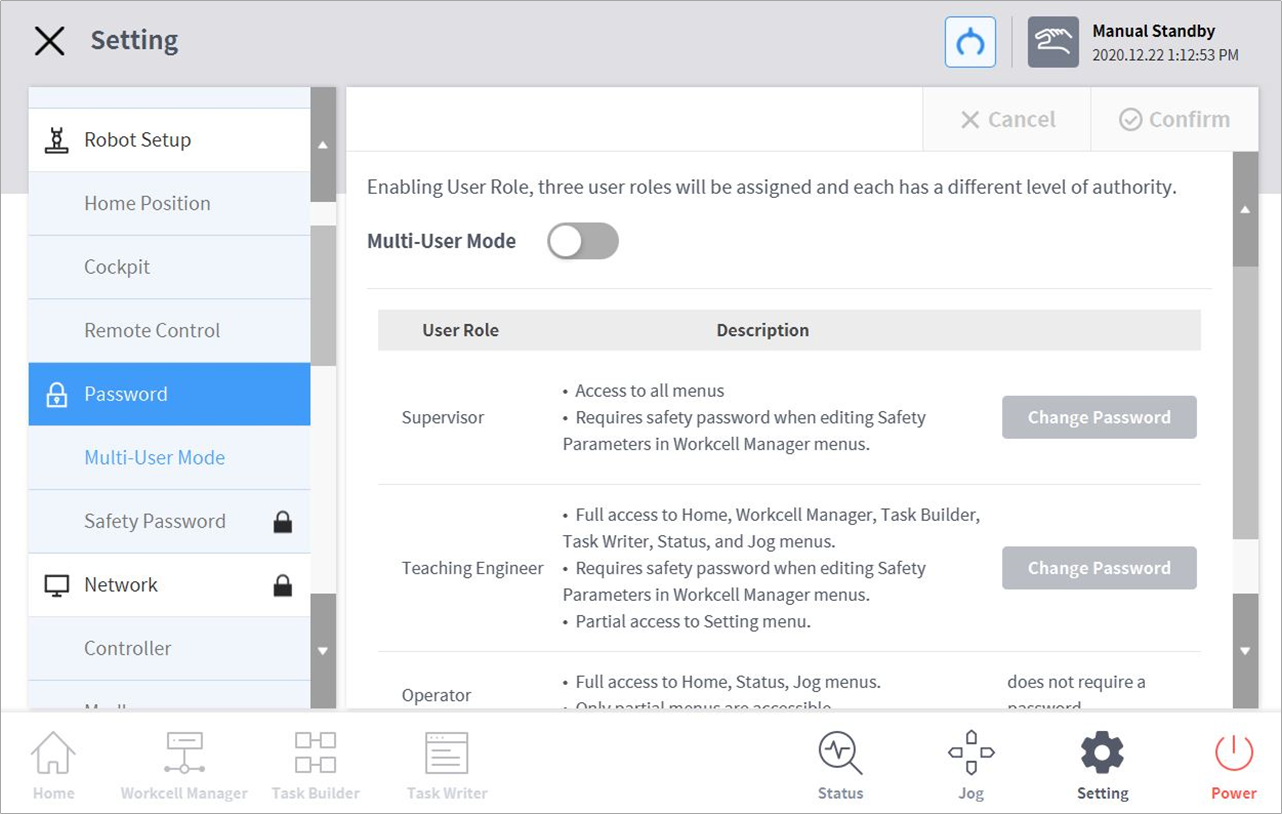
Select Password > Use User Role in the Settings menu.
-
The User Role On/Off, description of user role and Change Password buttons appear in the settings management window.
-
-
To enable/disable a user role, press the User Role On/Off button.
-
A screen asking for the administrator password is displayed.
-
When user authority is changed from Off to On, the screen returns to the Home screen and changes to operator role.
-
-
Enter the new password in the Change Password field and tap the Confirm button.
-
Password change settings are complete.
-
-
To change a user role, tap the User Role button.
Note
-
The initial administrator password is admin.
-
The initial teaching engineer password is admin.
-
If the User Role button is disabled, it operates in the same way as an administrator role.