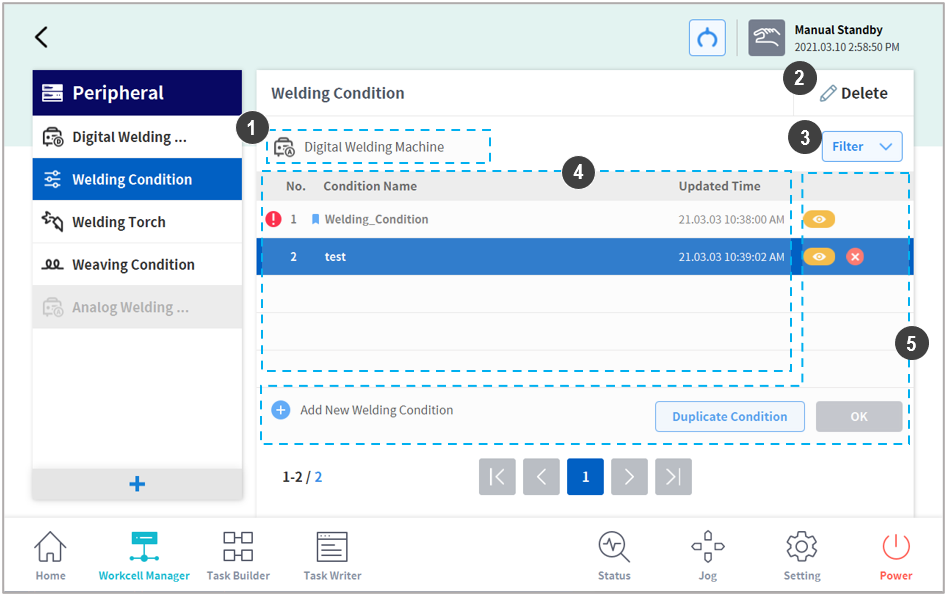
Welding Condition List Screen
|
No. |
Item |
Description |
|---|---|---|
|
1 |
Welding Machine Display Area |
The type and name of the activated welding machine is displayed here.
|
|
2 |
Delete Workcell Item |
This is for deleting welding condition Workcell items. An item can deleted if 1) the item only contains basic welding conditions, and 2) no activated welding machine is present. |
|
3 |
Filter Function |
|
|
4 |
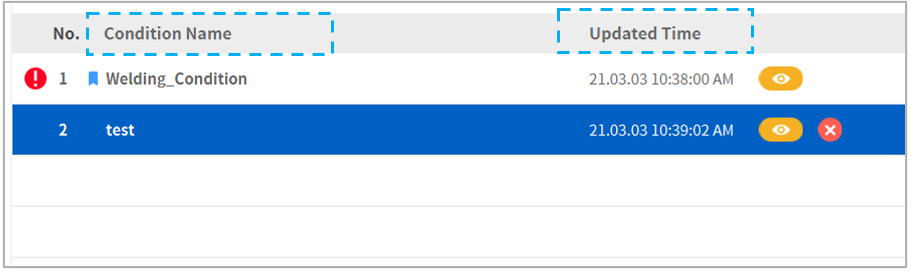
Welding Condition List Area
|
Saved welding conditions can be displayed in a list. Up to 500 welding conditions can be saved. By default, the list is sorted in the order of updates
|
|
5 |
Manage Welding Condition Area |
It is possible to view, delete, add and duplicate welding conditions. |
Manage Welding Condition Area
All welding conditions displayed in the welding condition list can be managed.
|
UI |
Item |
Description |
|---|---|---|
|
|
View Welding Condition |
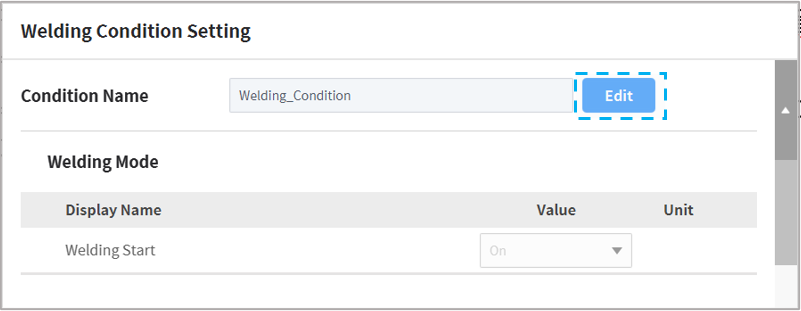
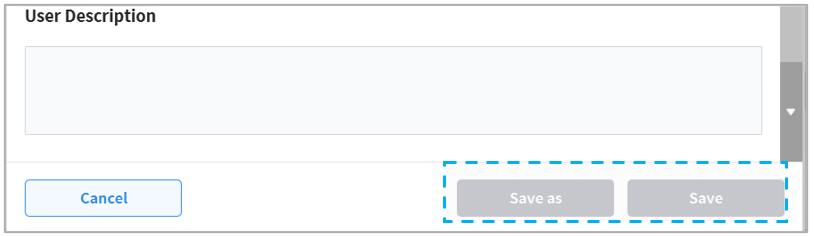
Details of saved welding conditions can be displayed. Details are displayed in a popup, and saved settings can be modified using the Edit button. Save or Save as (same as duplicate) are available after modification. |
|
|
Delete Welding Condition |
This deletes existing welding conditions. However, welding conditions being used by a task cannot be deleted |
|
|
Warning Icon |
This is displayed when an existing welding condition needs to be reset. Digital Welding Machine – Items in the Interface Settings tab have been modified, so the modified items must be applied to the condition settings. |
|
|
Add New Welding Condition |
Press this button to add a new welding condition. Pressing this button will display a popup, and a welding condition using preset interface items will be created.
|
|
|
Duplicate Welding Condition |
The welding condition of the selected row can be duplicated and saved. Press the Duplicate Condition button to automatically create a duplicate condition with a different name. Modify the name and press the OK button to save or cancel the process. 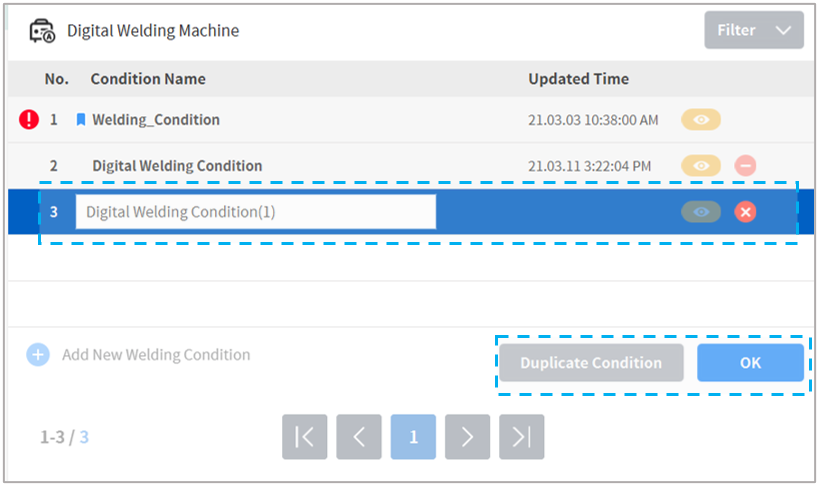
|
|
|
Confirm Welding Condition Duplication (OK) |
Confirm and save the duplicated welding condition. |