
It is possible to monitor and make adjustments while executing the welding task in real-time. If a welding command is included in a task, the Welding Control button will be enabled on the Play tab. Pressing the button will display a popup for monitoring and adjustment.
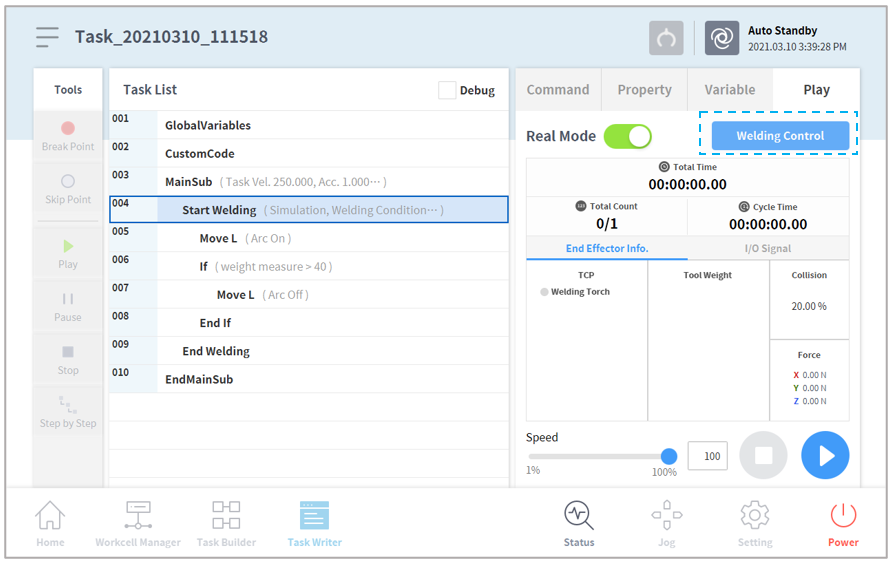
In order to maintain the set welding speed during actual welding, the Speed Control value must be set to 100 %. Make sure to check this before
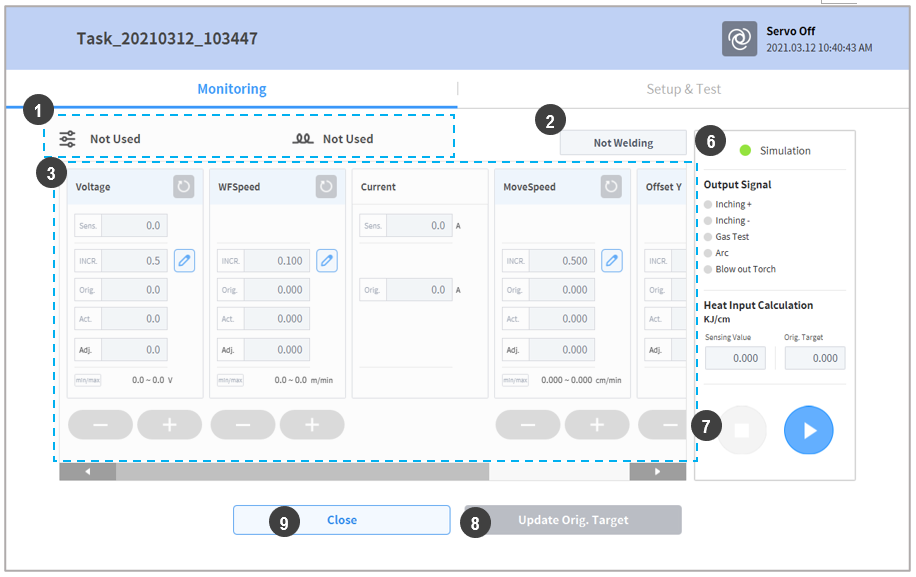
The popup looks like the following image. Items available for monitoring and adjustment can be viewed.
|
No. |
Item |
Description |
|---|---|---|
|
1 |
Welding/Weaving Condition Name |
Displays the name of the welding/weaving condition included in the welding block of the current task Basic conditions are displayed with the |
|
2 |
Welding Status Display |
Displays the task execution status, including welding, with four items (Welding, Error, Simulation, Not Welding) |
|
3 |
Monitoring Adjustment Items |
Voltage, Feeding Speed, Move Speed, Offset-Y and Offset-Z items can be adjusted, and Welding Current can be monitored. During interface setting, changing the display name will change the name of the corresponding item. |
|
4 |
Welding Mode and Welding Machine Status Display |
Display Welding Execution Mode (Simulation/Welding), Welding Machine Connection and Welding Machine Status. |
|
5 |
Stop/Play Buttons |
Perform stop/pause/resume task actions |
|
6 |
Save Condition Button |
Adjusted values can be applied to the selected welding/weaving condition and saved. However, if the condition is executed with basic conditions, the adjustments will not be applied. |
|
7 |
Cancel Button |
Cancels monitoring and adjustment and closes the popup window. |
