
It is a screen to add a new global function item or edit.
It can be saved only after the function name, description, and code are entered.
Full screen
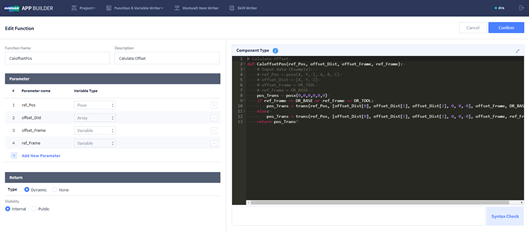
It displays the list of the Global Function created by the user. It displays the name and description of the Global Function.
When entered by editing, it loads the name and description of the global function entered previously.

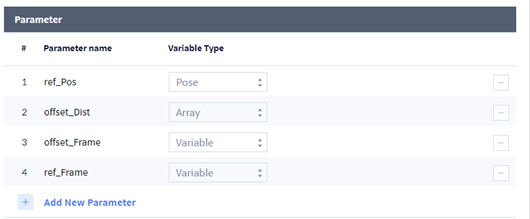
Parameter Information Area
When entered by editing, it loads the parameter information entered previously.
|
Item |
Description |
|---|---|
|
Add New Parameter |
When need to add a parameter, click the button to add a new parameter. |
|
Parameter name |
It provides a view to enter the name of the Parameter. |
|
Variable Type |
It provides a button to enter the data type of the Parameter.
|
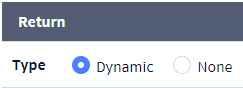
Return Type Setting
|
Item |
Description |
|---|---|
|
Dynamic |
Select if there is a return value. |
|
None |
Select if there is no return value |
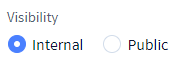
Visibility Setting
|
Item |
Description |
|---|---|
|
Public |
Make the global function public to all users. |
|
Internal |
Make the global function accessible by the affiliated company only. |
Code Editor
-
When changing data to System Variable within DRL Code, The behavior of WCI or SKILL using the same System Variable may not work properly. Please indicate the precautions and the details of the System Variable being used in DRL Code.
-
When writing Workcell Item Writer or Skill Writer items, please use UI Component > Text Edit Component for notices.
-
In case of using System Variable in DRL Code, it is necessary to register System Variable first in Teach pendant.
-
Currently, App Builder limits the maximum capacity of Code Editor to 65,000 bytes for comfortable loading and execution. For a successful build, the capacity of each code using Code Editor, such as a function, must be written separately so that it does not exceed 65,000 bytes.
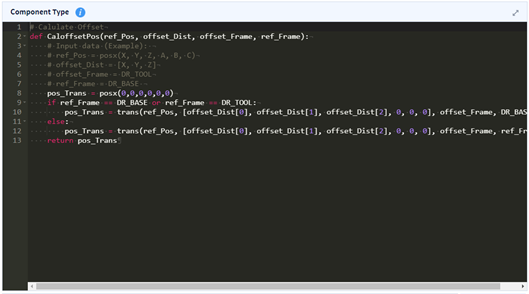
|
Item |
Description |
|---|---|
|
|
It displays DRL Command Guide page as a reference when writing codes. |
|
|
An enlarged pop-up is displayed so that Code Edit can be written in a more spacious space. |
|
Input Window |
It is the area to write DRL codes.
|


Compile

|
Item |
Description |
|---|---|
|
Compile
|
An error message is displayed when there is a grammatical error. |
|
Syntax Check |
It is a function to check for a grammatical error in the DRL code written.
|