
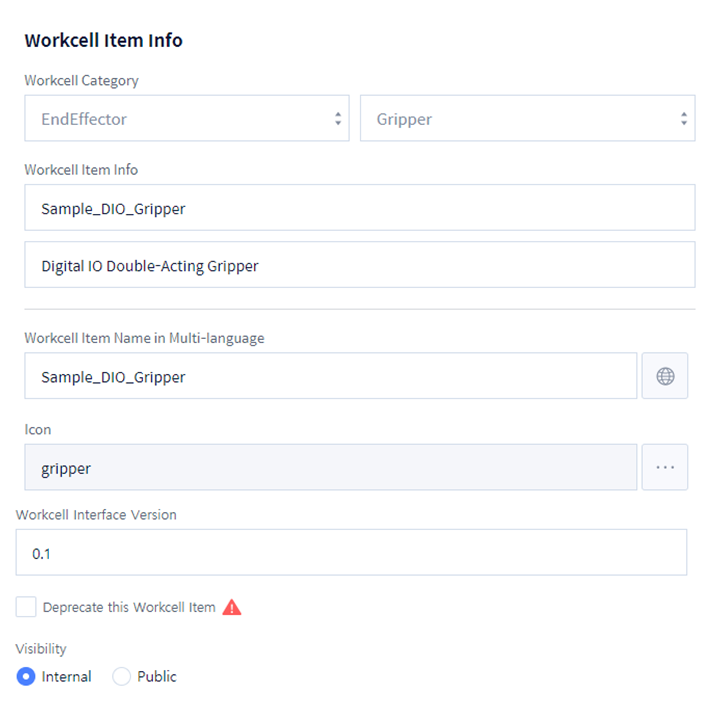
You need to fill out the ‘General Info’ first. Enter the ‘Workcell item Info’ like the below image.
-
Select ‘WCI Category’.Select EndEffector and Gripper.
-
Enter the ‘WCI Name’ and ‘Description’ in the ‘WCI Info’ as below.WCI Name: Sample_DIO_GripperDescription: Digital IO Double-Acting Gripper
-
Enter the name of WCI in ‘Workcell Item Name in Multi-language’. The name entered will be displayed as the WCI name on Teach Pendant.
-
Workcell Item Name in Multi-language: Sample_DIO_Gripper
-
Or, enter the ‘Language Code’.
Multi-language is available only for words pre-registered by Doosan Robotics.
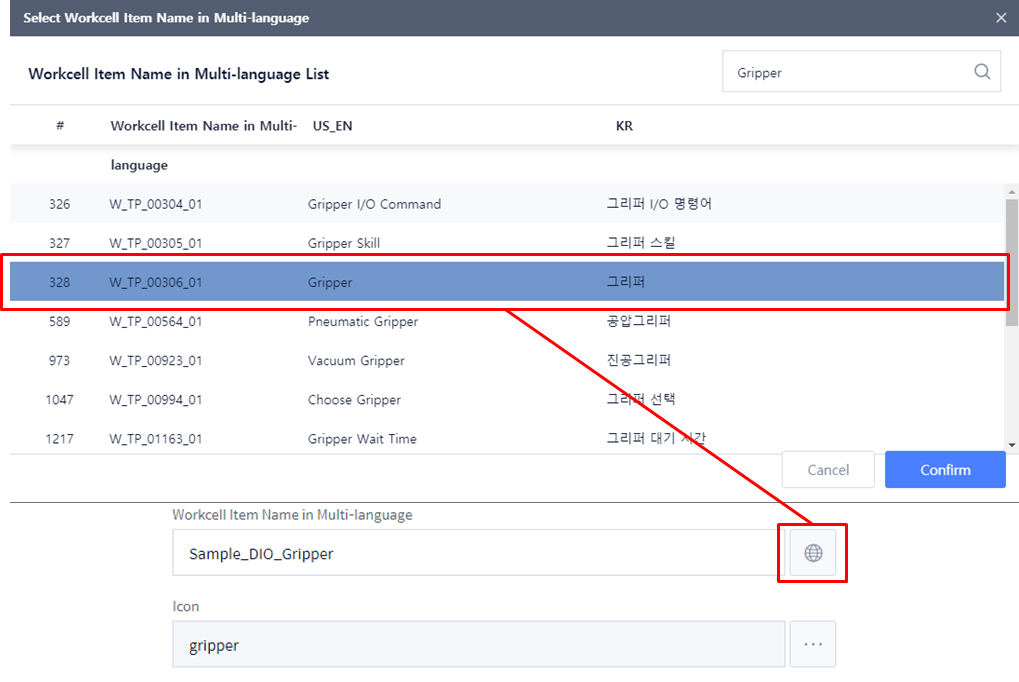
The following is how to find a ‘Language Code’.
-
Click the multi-language icon.
-
Search a word in English.
-
Select the word and click Confirm.
-
‘Language Code’ is entered in ‘Workcell Item Name in Multi-language’.
Ex) When selecting by searching gripper, ‘W_TP_00306_01’ is automatically entered. -
The name entered as ‘Language Code’ is displayed in the language corresponding to the country of the language set in Teach Pendant.
-
-
-
Press ‘...’ button in Icon to set the WCI icon. You can search and register an image only for the icons pre-registered by Doosan Robotics· Icon: gripper
-
Enter the version of the WCI in ‘Workcell Interface Version’.Workcell Interface Version: 0.1
-
Select 'Visibility Type.'Visibility Type: InternalSelect ‘Internal’ to allow internal access only.Select ‘Public’ to allow external access.