
-
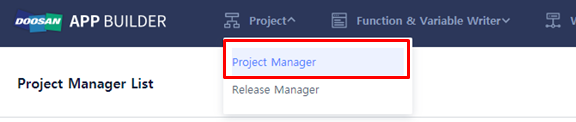
Click 'Project' → 'Project Manager’ from the upper bar menu.
-
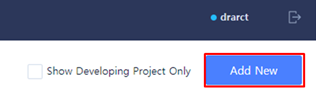
Click 'Add New’ button located on the top right to create a new project.
-
Enter basic information to create a project and click the Confirm button.
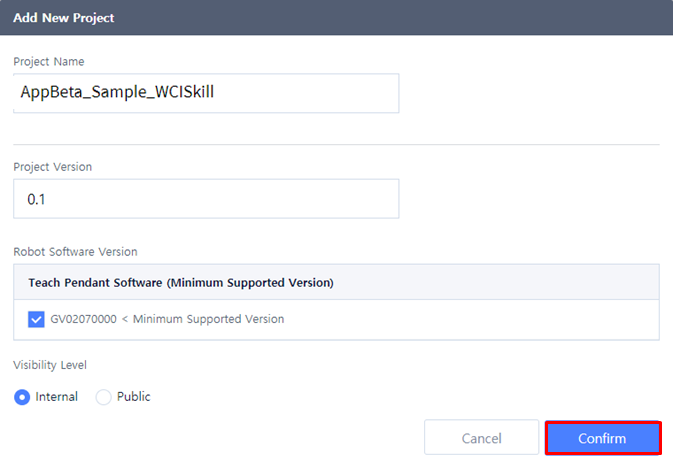
Project Name: AppBeta_Sample_WCISkillProject Version: 0.1Robot Software Version: GV020700000 (minimum version supported) Vsibility Level: Internal -
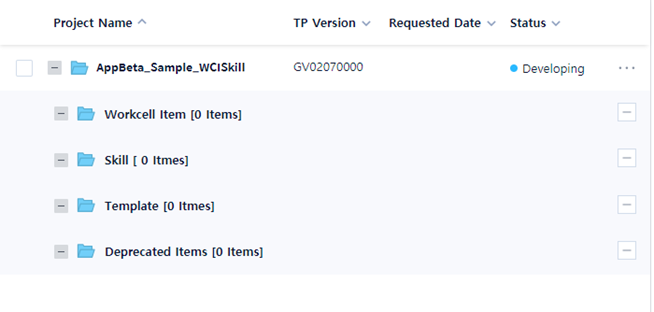
A new project is created in the folder in 'Project Manager List' on the left.
-
Select and Add WCI to the project.
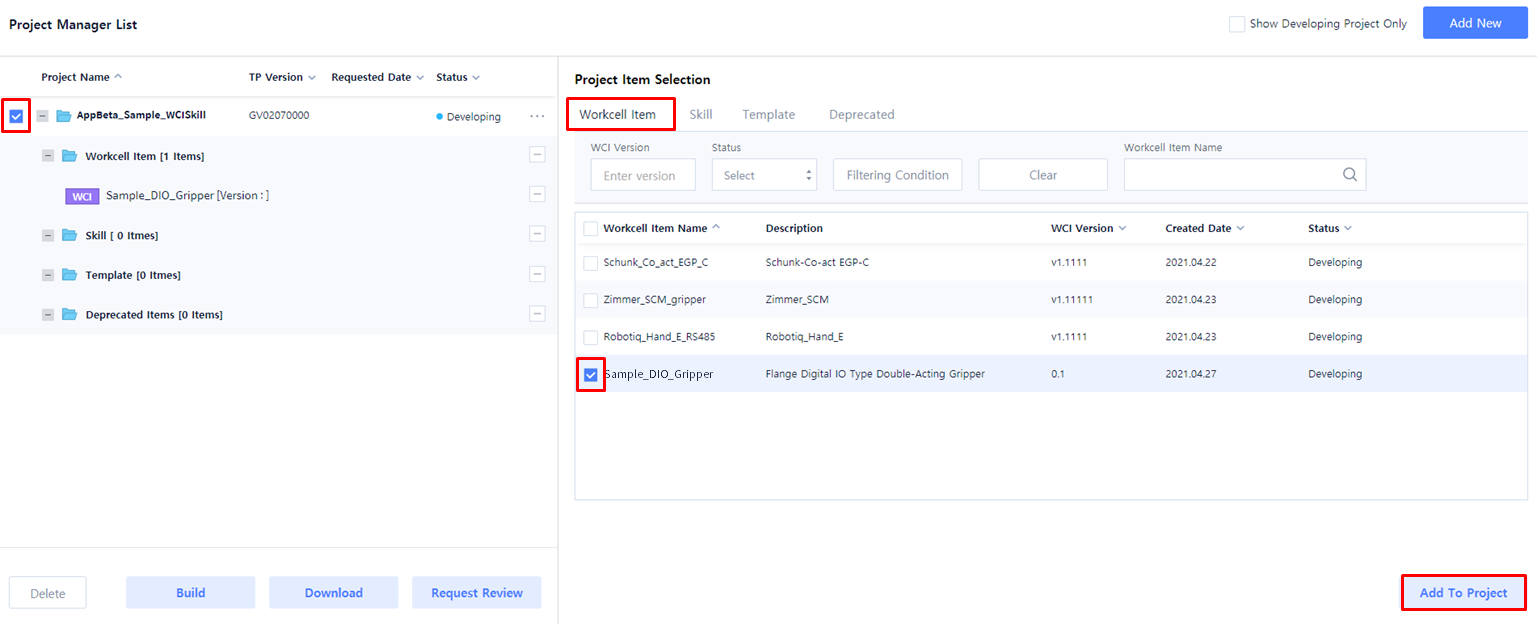
Select a project.Project: AppBeta_Sample_WCISkillClick ‘Workcell Item’ from Project Item Selection menu.Select ‘Workcell Item’.Workcell Item: Sample_DIO_Gripper Click ‘Add To Project’ button. -
Add a skill to the project.
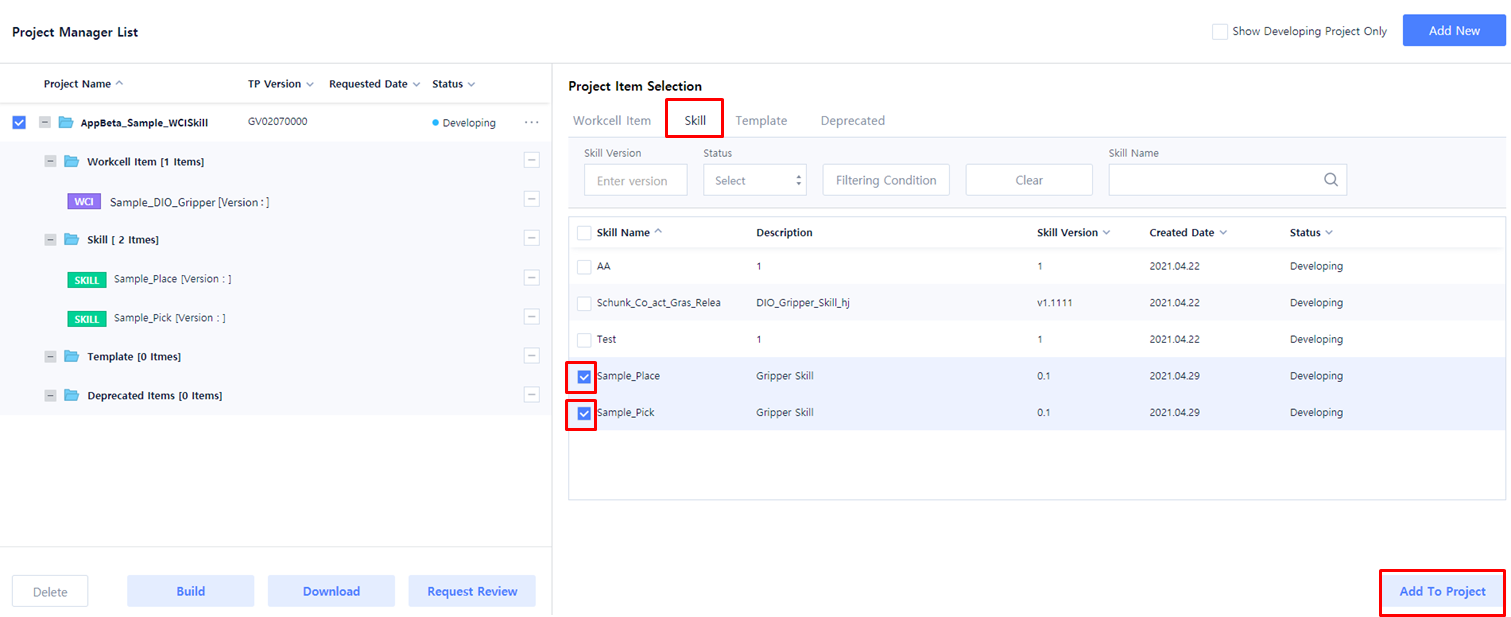
Click ‘Skill’ from Project Item Selection menu.Select ‘Skill’.Skill: Sample_PlaceSkill: Sample_PickClick ‘Add To Project’ button. -
Add WCI and Skill to the project and press ‘Build’ button to create a dr3 file.

Click the ‘Build’ button. Select the ‘File Type’ as ‘DR3’.Click the ‘Confirm’ button to start the build. -
Once the build is completed, click the ‘Download’ button to download a dr3 file.
