
|
No. |
Item |
Description |
|---|---|---|
|
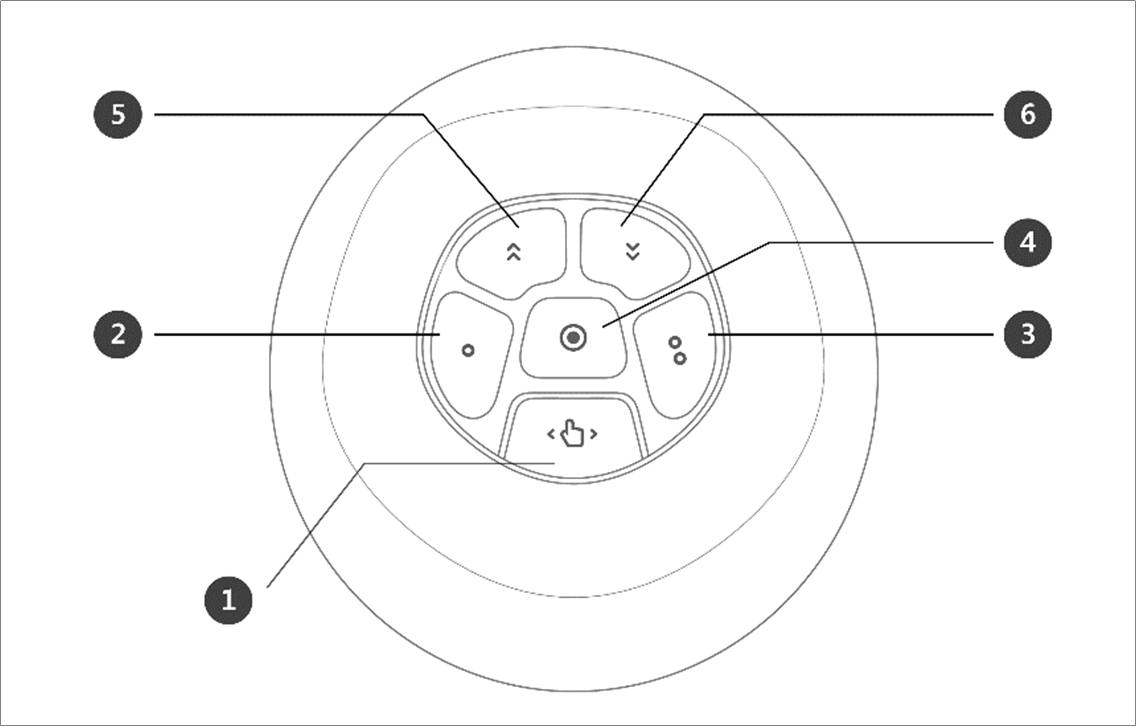
1 |
Hand-Guiding Button |
This button can be used to adjust or change the robot’s pose. |
|
2, 3 |
User Setting Button |
This button can modify the robot’s pose by entering a pose according to a lock condition corresponding to a mode.
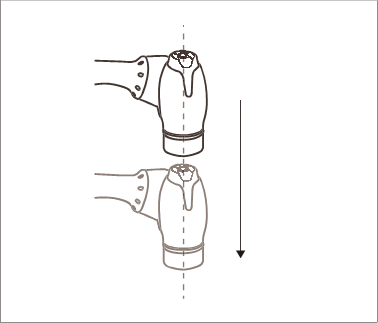
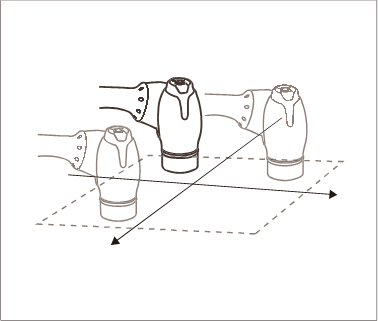
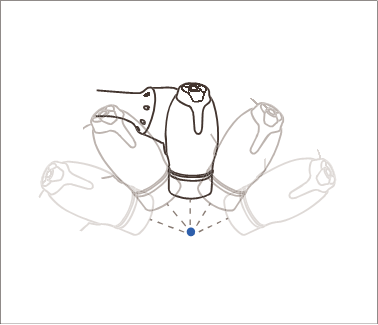
For more information about the settings, refer to Cockpit Setting. |
|
4 |
Save Pose Button |
Saves the current robot pose. For more information, refer to Skill Command Work Point Setting with Cockpit Buttons. |
|
5 |
One Line Up |
Moves the Focus displayed on the screen one line up |
|
6 |
One Line Down |
Moves the Focus displayed on the screen one line down |
Note – Cockpit Setting Change
-


-
Pressing the Save Pose button on the Skill Setting screen will automatically move the focus to the next pose.
-
The cancel button can only be used in the Skill Setting window that manages multi-poses.