It is a screen to add a new global variable item or edit. You can create global variables that can be used in common in various WCI & Skills.
It can be saved only after entering the variable name.
Create Global Variable
-
Select 'Function & Variable Writer' → 'Global Variable in the upper bar menu.
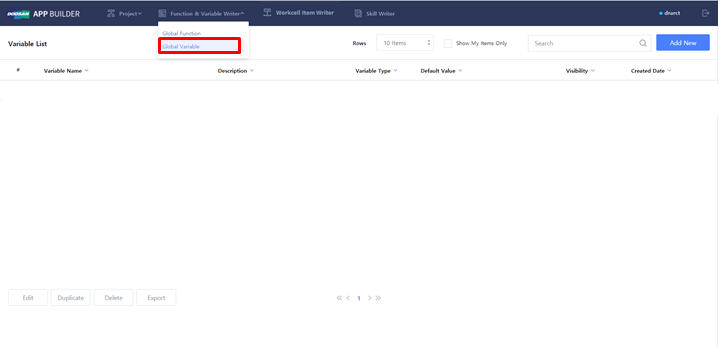
-
You can create a new ‘Global Variable’ or edit the existing ‘Global Variable’.
-
Click ‘Add New’ button to create a new 'Global Variable’.
-
Check one item from the existing 'Global Variable' list and click ‘Edit’ button to edit the existing ‘Global Variable’.
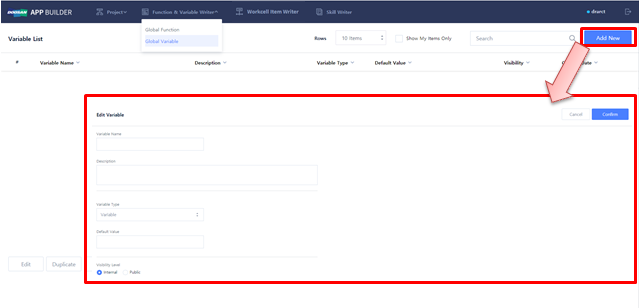
-
Fill out and edit Global Variable
-
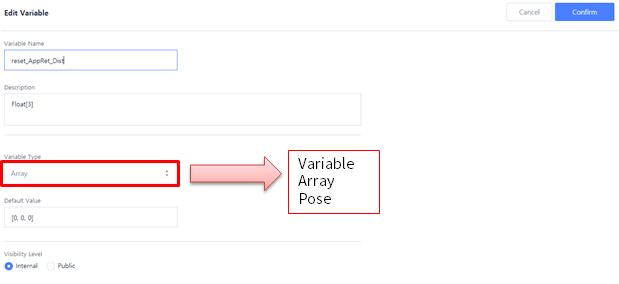
Enter the name and description of the ‘Global Variable’ in ‘Variable Name’ and ‘Description’, respectively.
-
Select a ‘Variable Type’ and enter a ‘Default Value’.
-
Set the ‘Visibility Type’.
-
Save the Global Variable and click ‘Confirm’.
|
Item |
Description |
|---|---|
|
Variable Name |
Enter the name of the variable. |
|
Description |
Enter the description for the variable. |
|
Variable Type |
It provides a button to enter the data type of the Variable.
|
|
Default Value |
It sets the default value of the variable. |
|
Visibility Level |
|
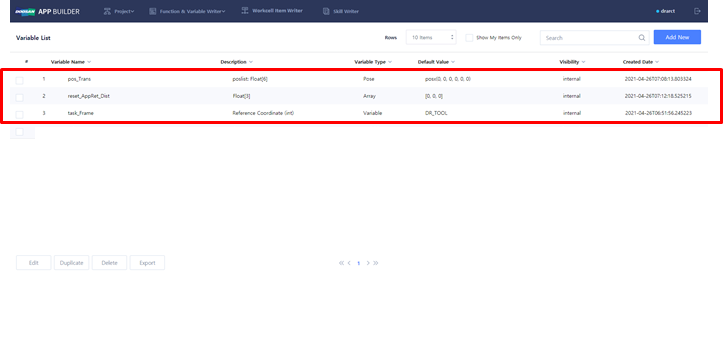
Check Global Variable List
Once the Global Variable is saved, you can check the list as below.