
All functions can be executed from the menu bar, context menu of 3D view, and context menu of object explorer tree.
Open operation window from main menu bar
-
Click a menu button in the main menu bar.

-
Select an option in the active window.
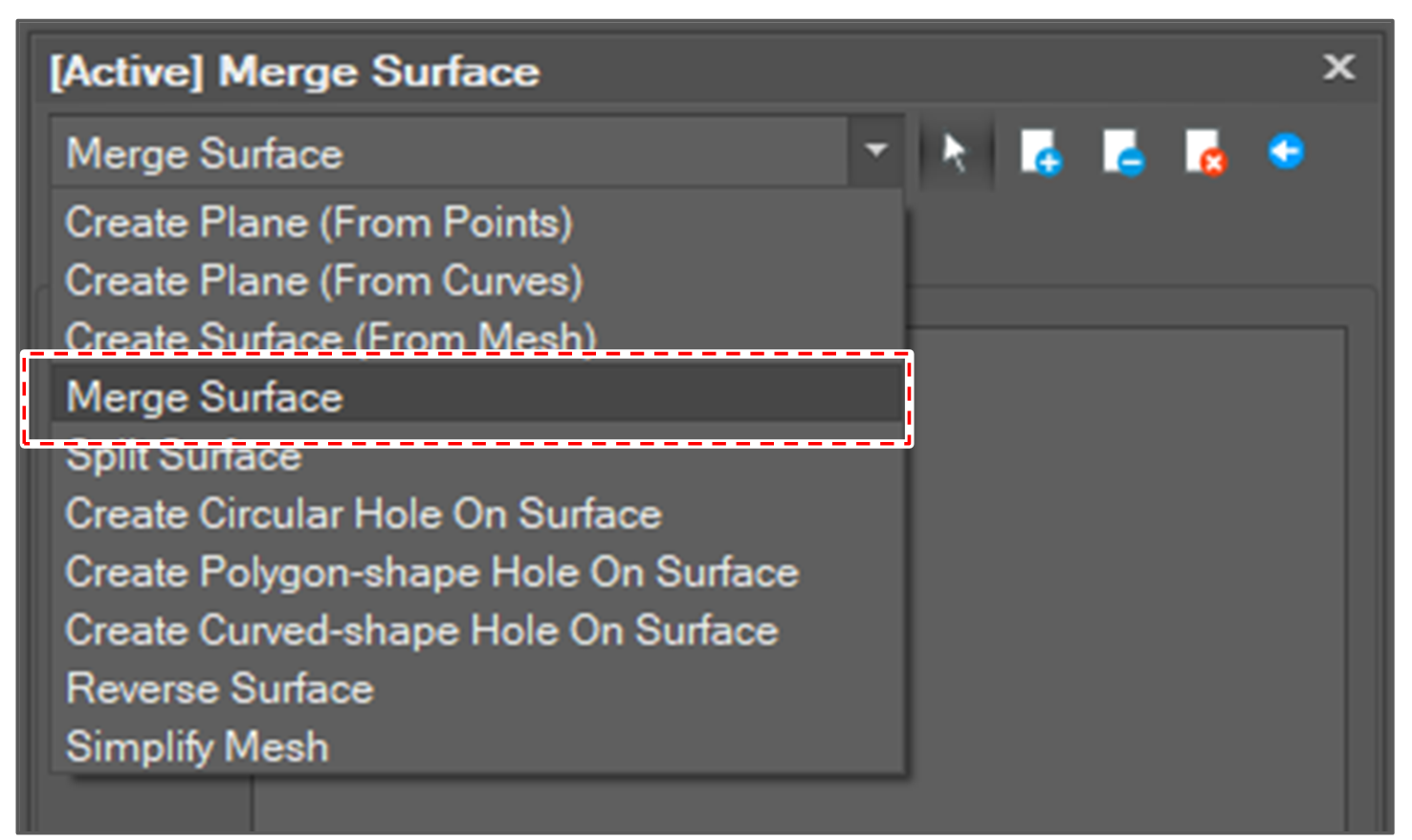
-
Select the target objects.
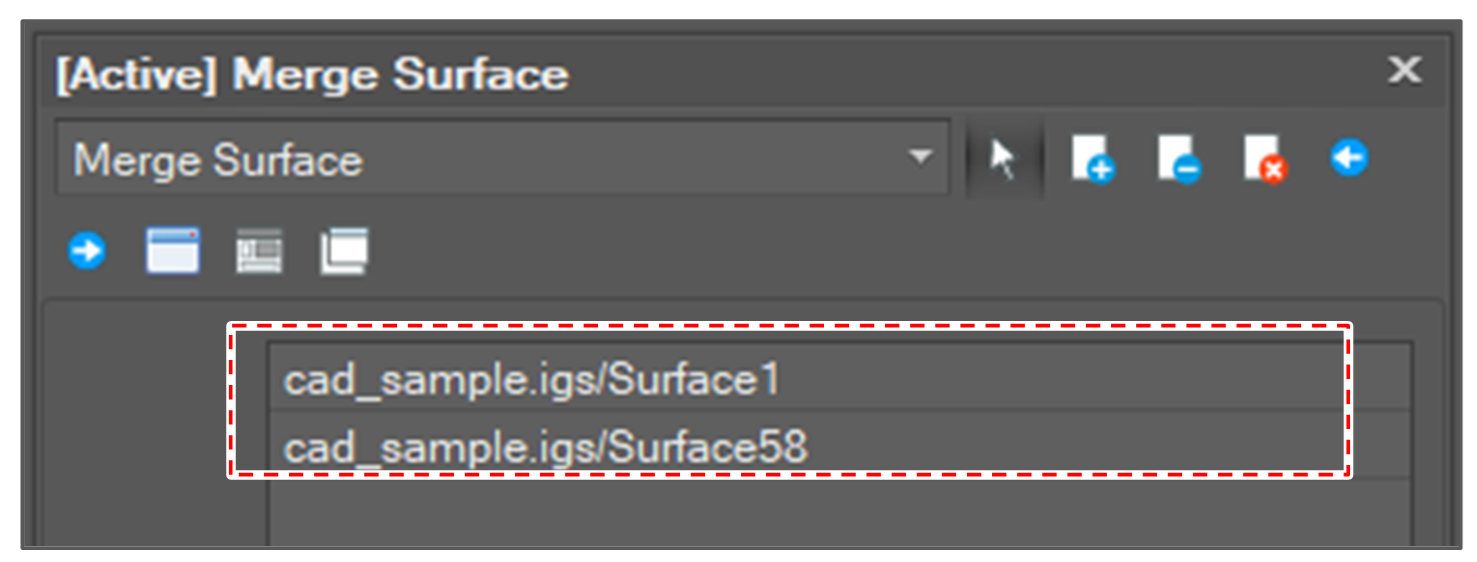
Open operation window from 3D view
-
Select the target objects in the 3D view.
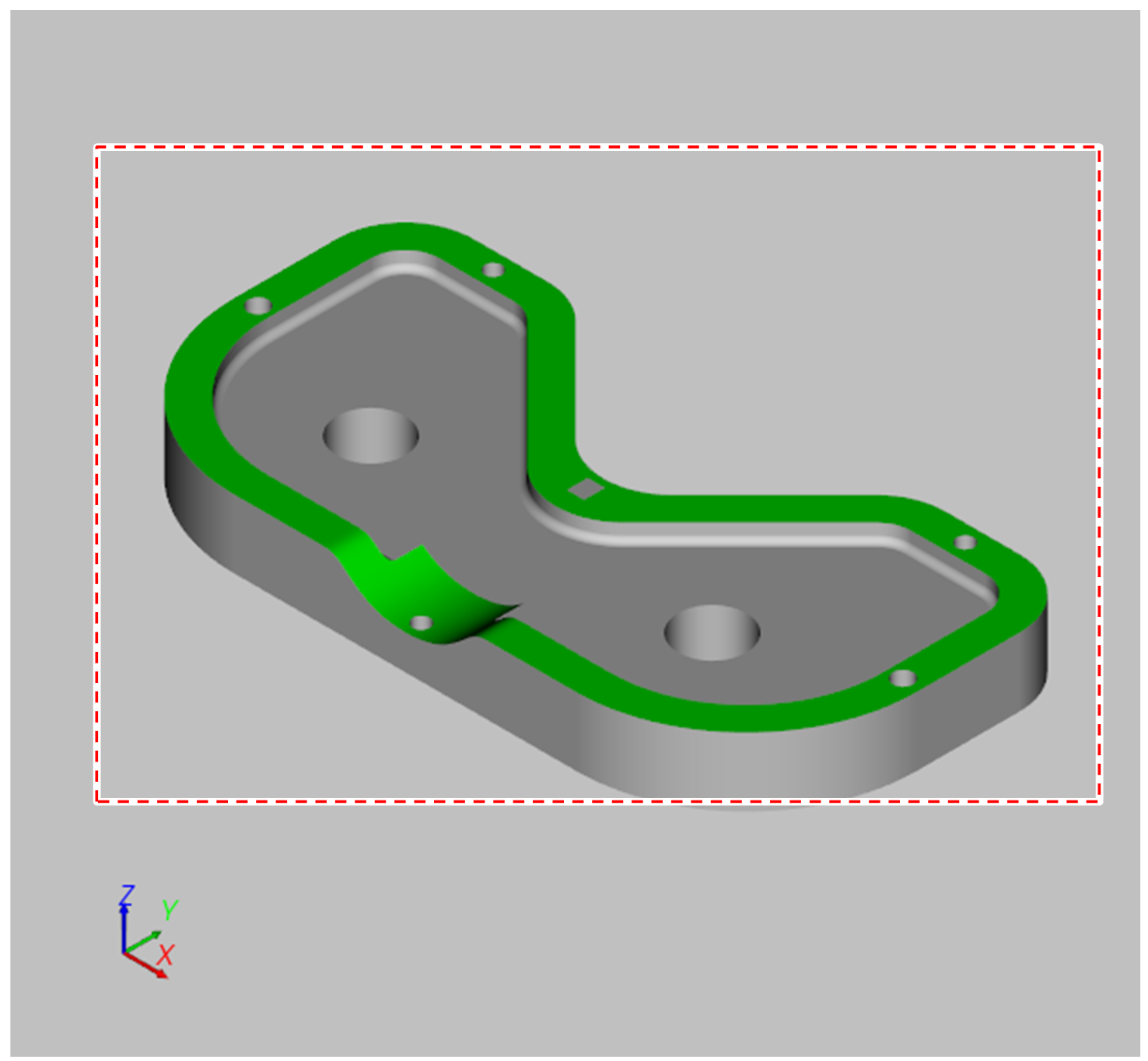
-
Select a menu in the context menu.
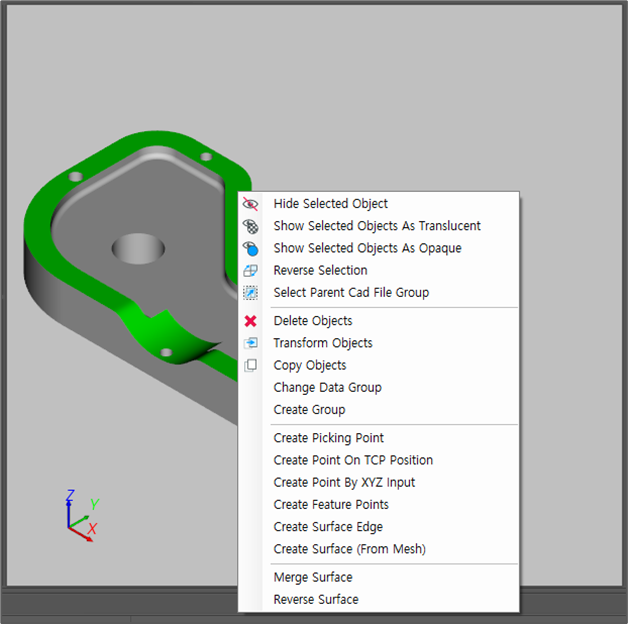
-
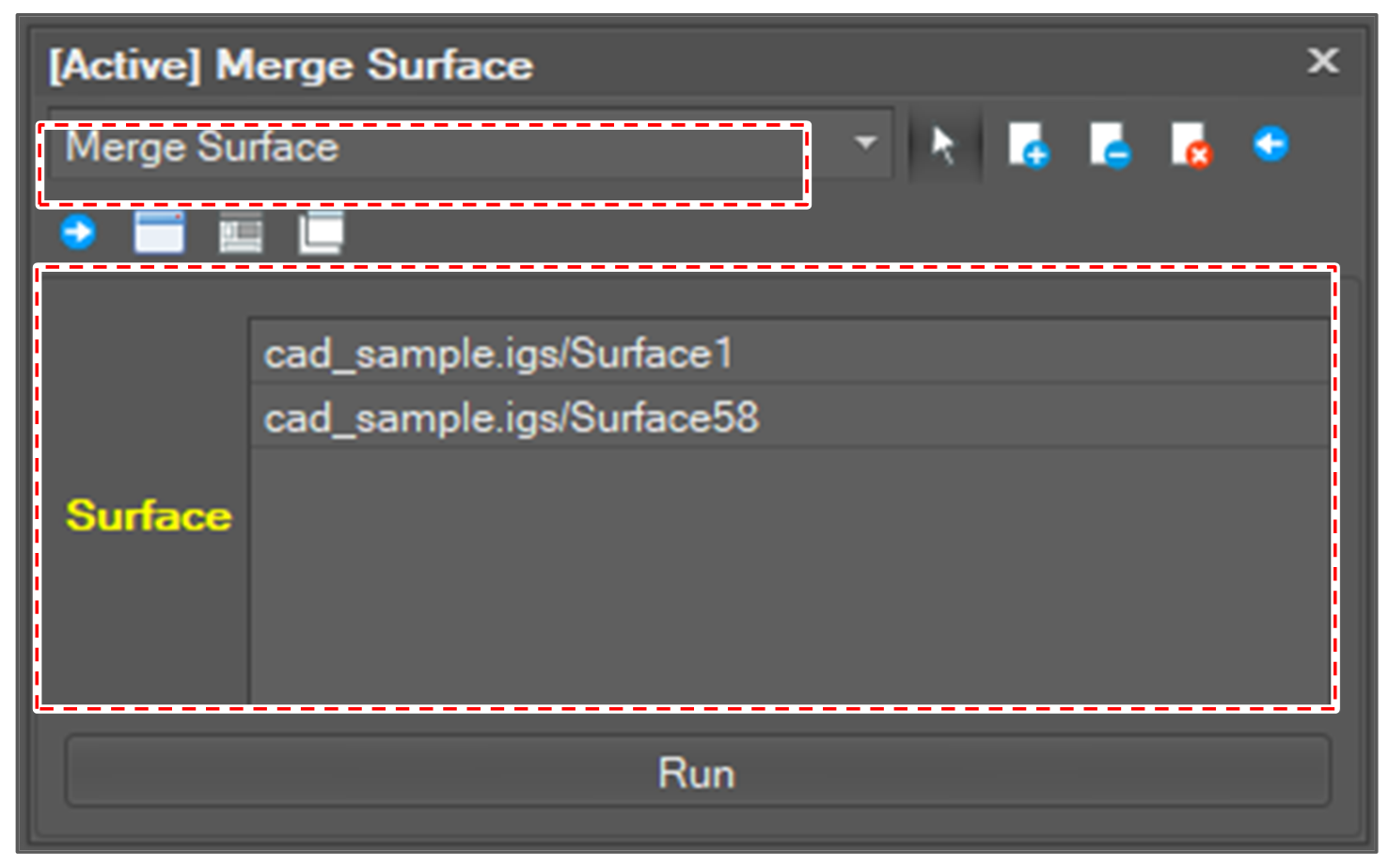
If the user selects a menu, the corresponding operation windows is activated and the control for the target objects are filled.
Open operation window from Entity tree
-
Select target object in the entity tree.
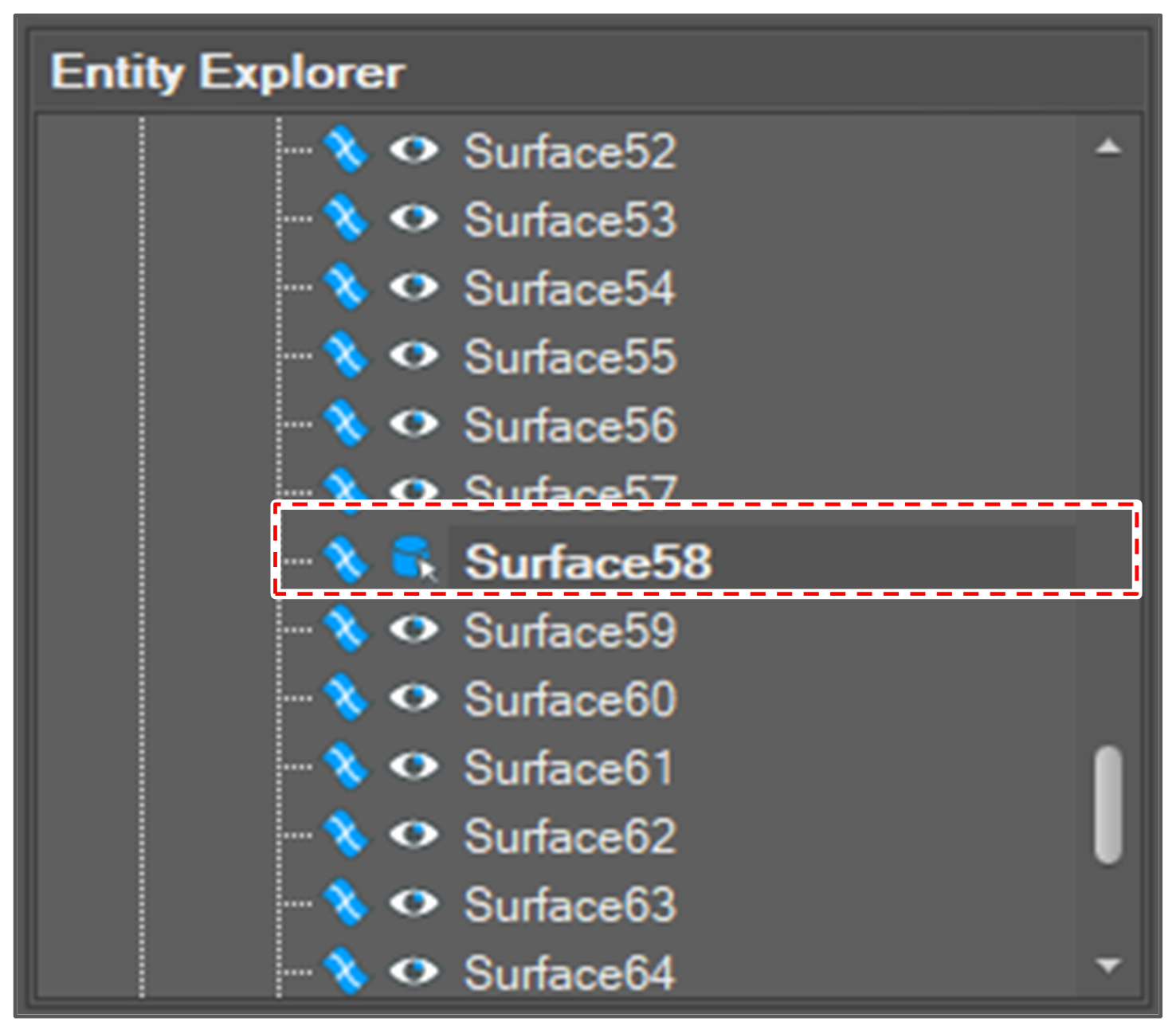
-
Select a menu in the context menu.
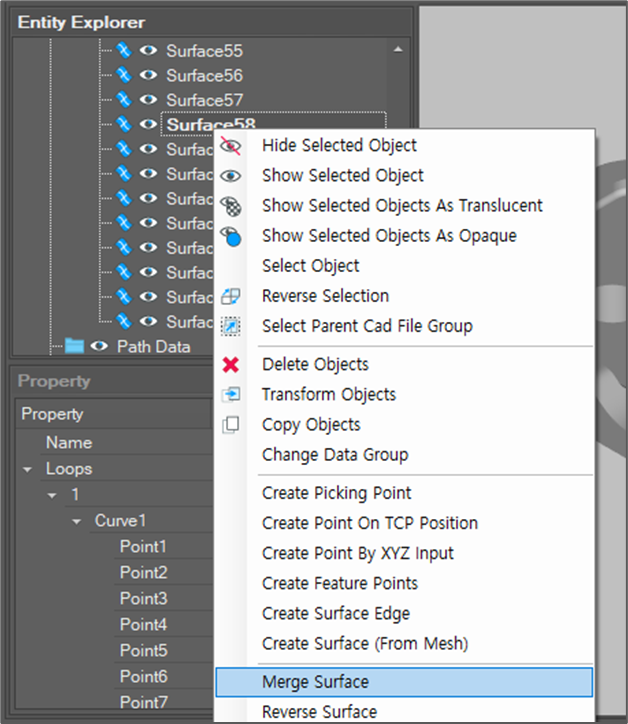
-
If the user selects a menu, the corresponding operation windows is activated and the control for the target objects are filled.