
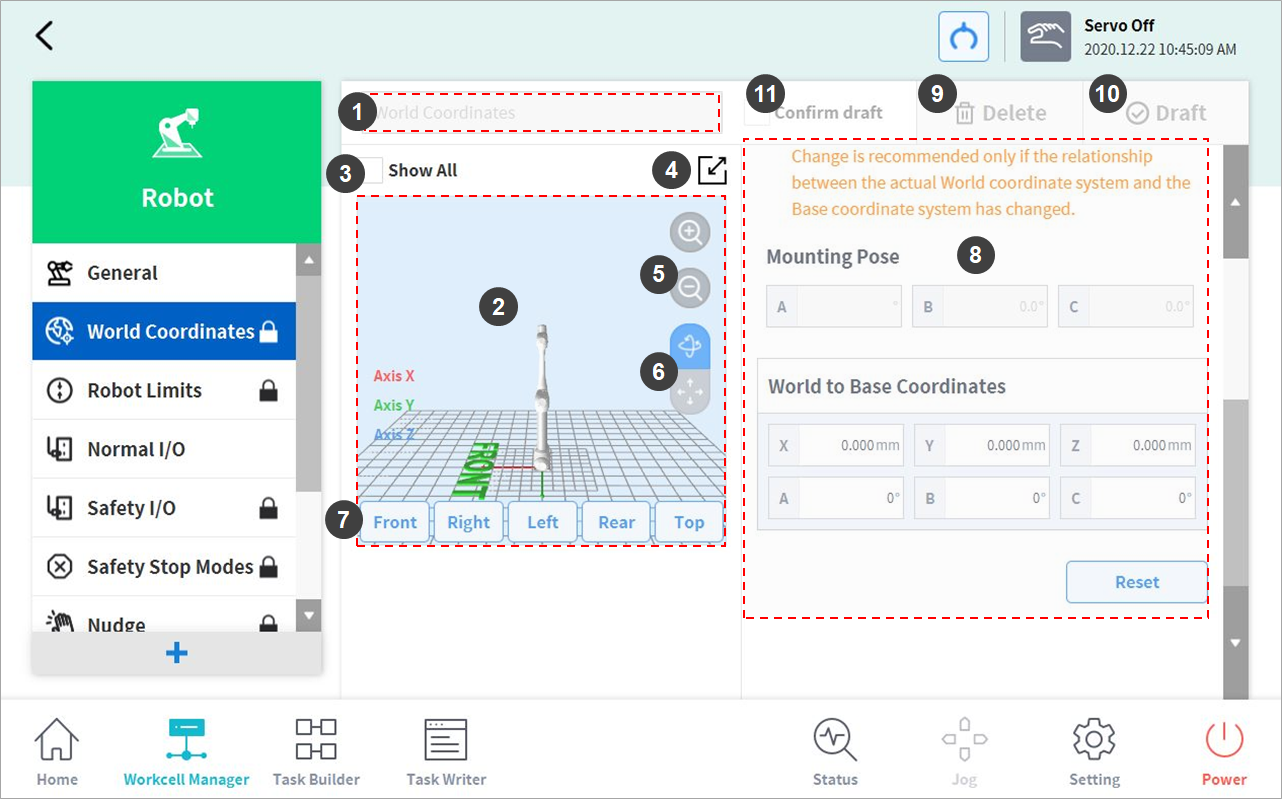
The robot setting screen layout is composed as follows:
|
No. |
Item |
Description |
|---|---|---|
|
1 |
Enter Workcell Name |
Enter the name of the Workcell. |
|
2 |
Simulation Screen |
Displays the work space simulation of the Workcell. |
|
3 |
View All |
All other registered Workcells are displayed. Selecting all checkboxes enables the View All function. De-selecting checkboxes disables the function. |
|
4 |
Change to Full Screen( |
The simulation screen is displayed as a full screen. Tap the minimize button ( |
|
5 |
Zoom In( |
Zoom in or out the simulation screen. |
|
6 |
Rotate( |
Rotate or move the simulation screen. Tap the button and drag or tap the screen to control. |
|
7 |
Simulator Direction Setting |
Sets the direction of the simulator. The simulation is displayed from the selected direction. |
|
8 |
Workspace |
Displays the workspace of the Workcell. |
|
9 |
Delete |
Deletes the current Workcell. |
|
10 |
Draft Confirm |
Draft: This temporarily saves the workspace settings of Workcell. Confirm: This saves the current or confirmed temporary save of the workspace settings of Workcell. (For safety-related Workcells only, the Confirm button is displayed after Confirm Temporary Save has been performed. For general Workcells, only the Confirm button is displayed.) |
|
11 |
Confirm Draft |
This confirms to save the temporarily saved workspace settings. (This is displayed only for safety-related Workcells and not displayed for general Workcells) |


