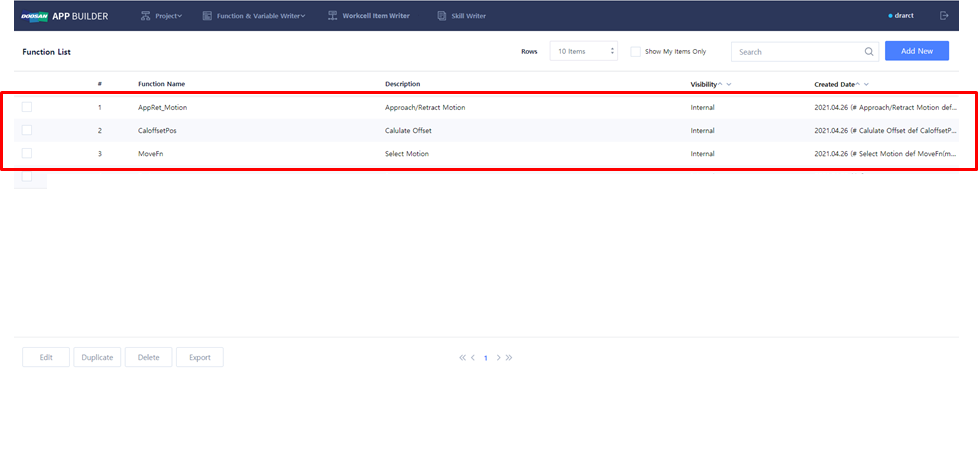
Create Global Function
Global Function commonly used in various WCI & Skill can be created.
-
Function & Variable Writer → Select Global Function
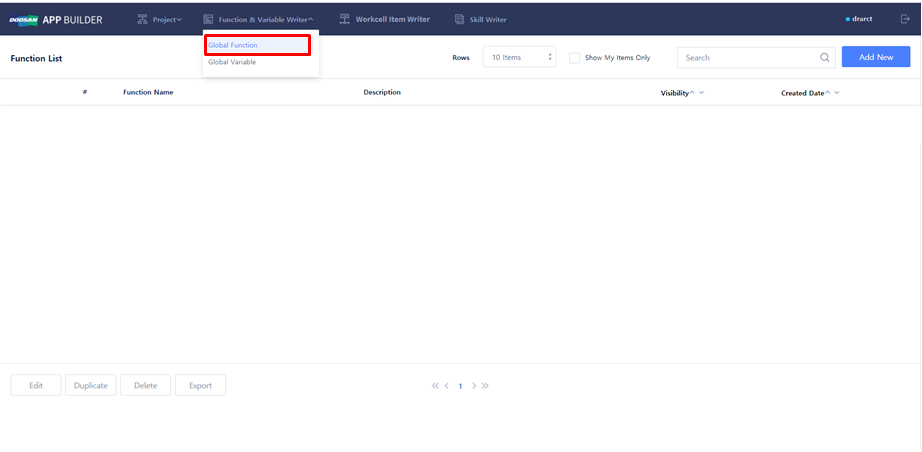
Edit Global Function
Global Function can be newly created, or existing Global Function can be modified.
-
Create new Global Function: Add New
-
Modify existing Global Function: Check one of existing Global Functions → Edit
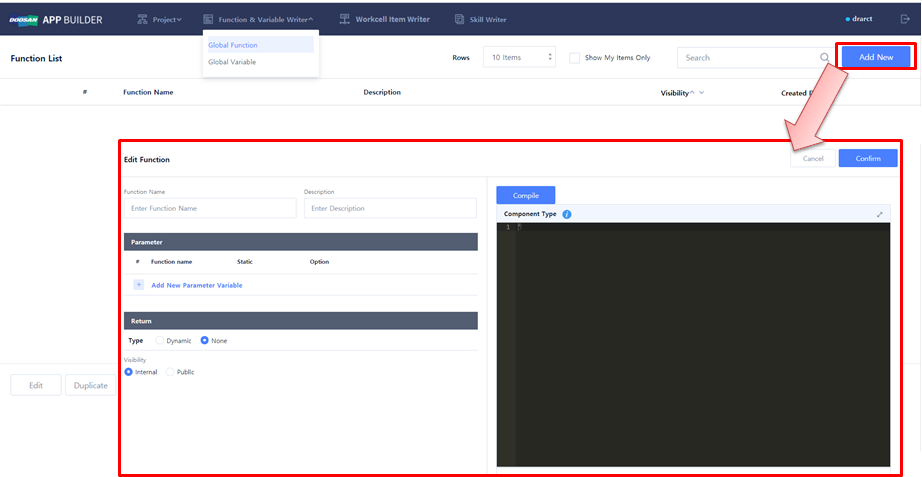
Create and modify Global Function
-
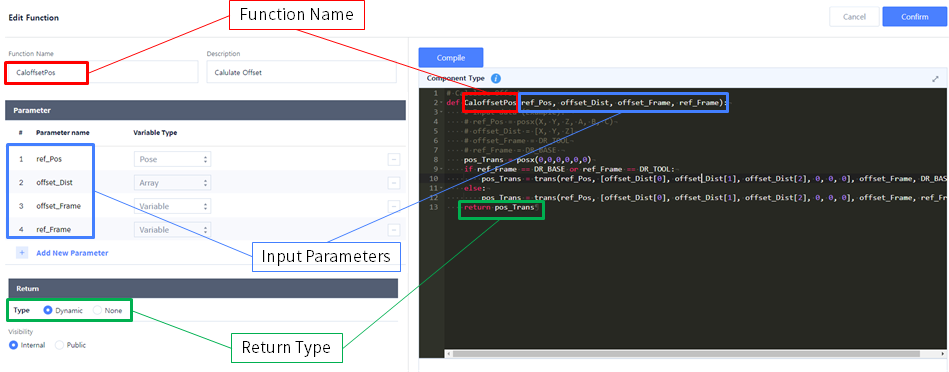
Write the name and description of Global Function in Function Name and Description.
-
In Parameter Name, enter Input parameters to be used in function.
-
Set Return Type: Select Dynamic if there is a Return value, and select None if there is none.
-
Set Visibility Type.
-
In Text editor, enter the details of Global Function using DRL Codes (Python).
→ This must be entered in the form of Python function. Check to make sure that Function Name and Parameter entered in the UI window are the same. -
Save Global Function → Confirm
-
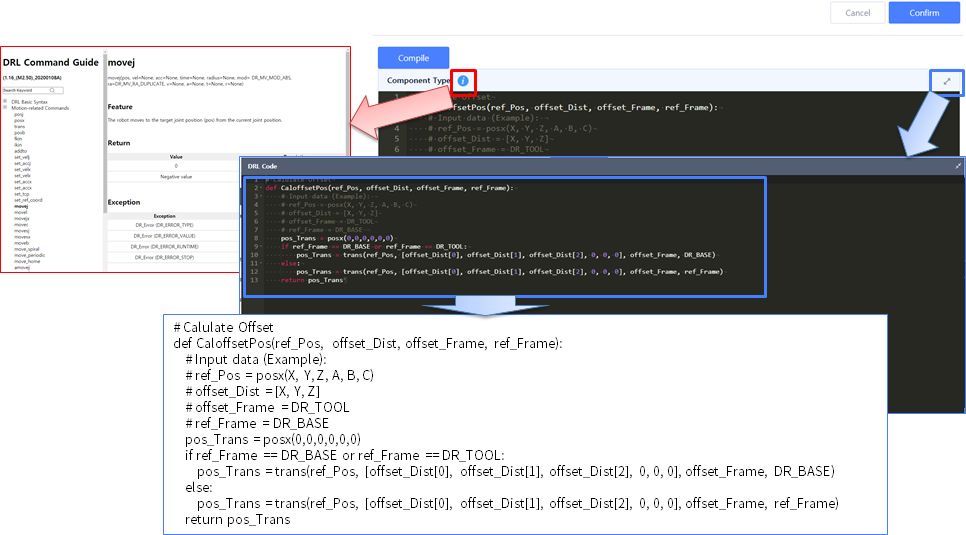
Text editor can be expanded, and Python grammar check is possible.
-
(information) Click the button to write while checking DRL Command Guide.
-
Sample Code: CaloffsetPos()
Global Function List
Save Global Function to check the list as follows.