
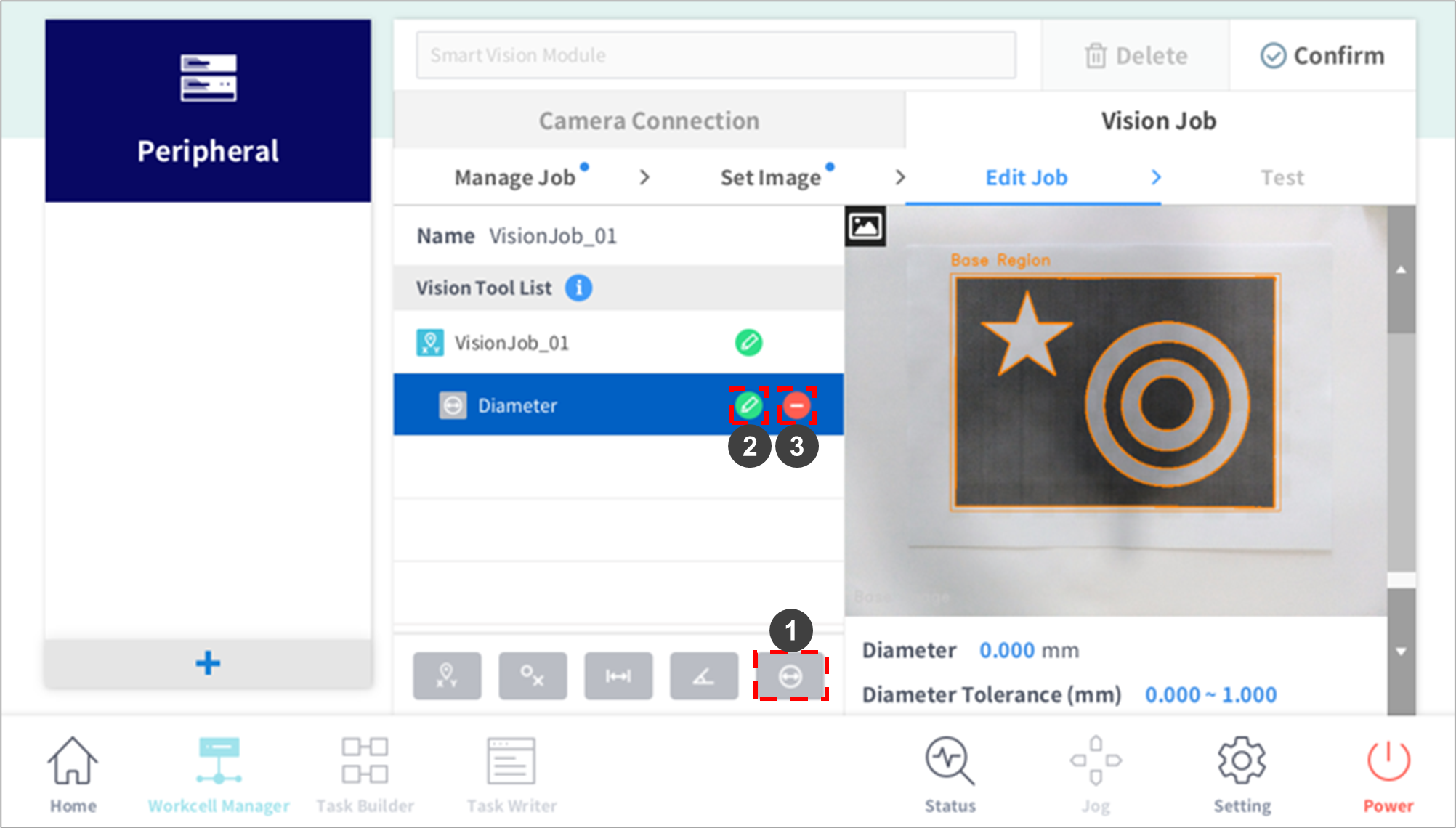
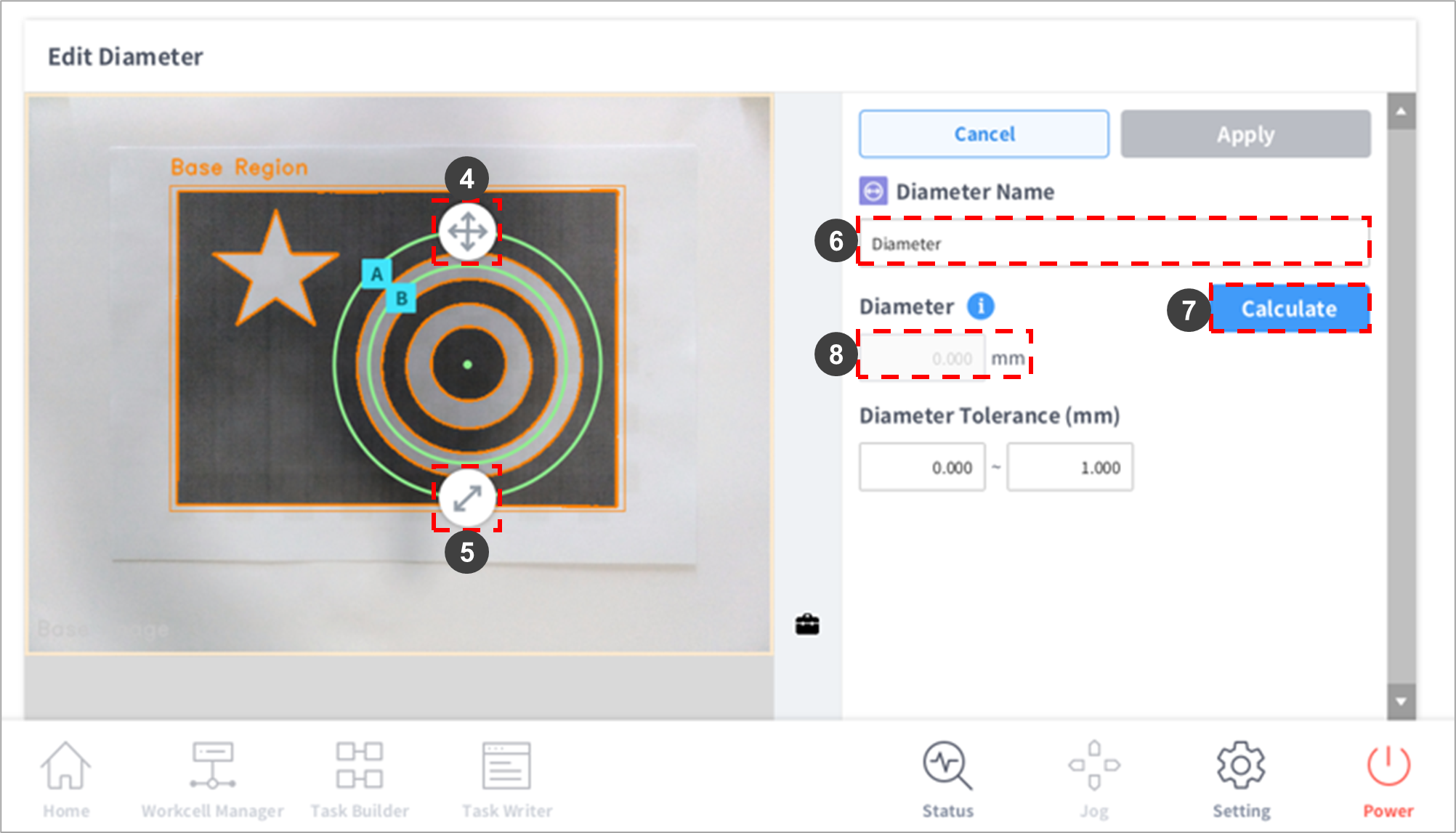
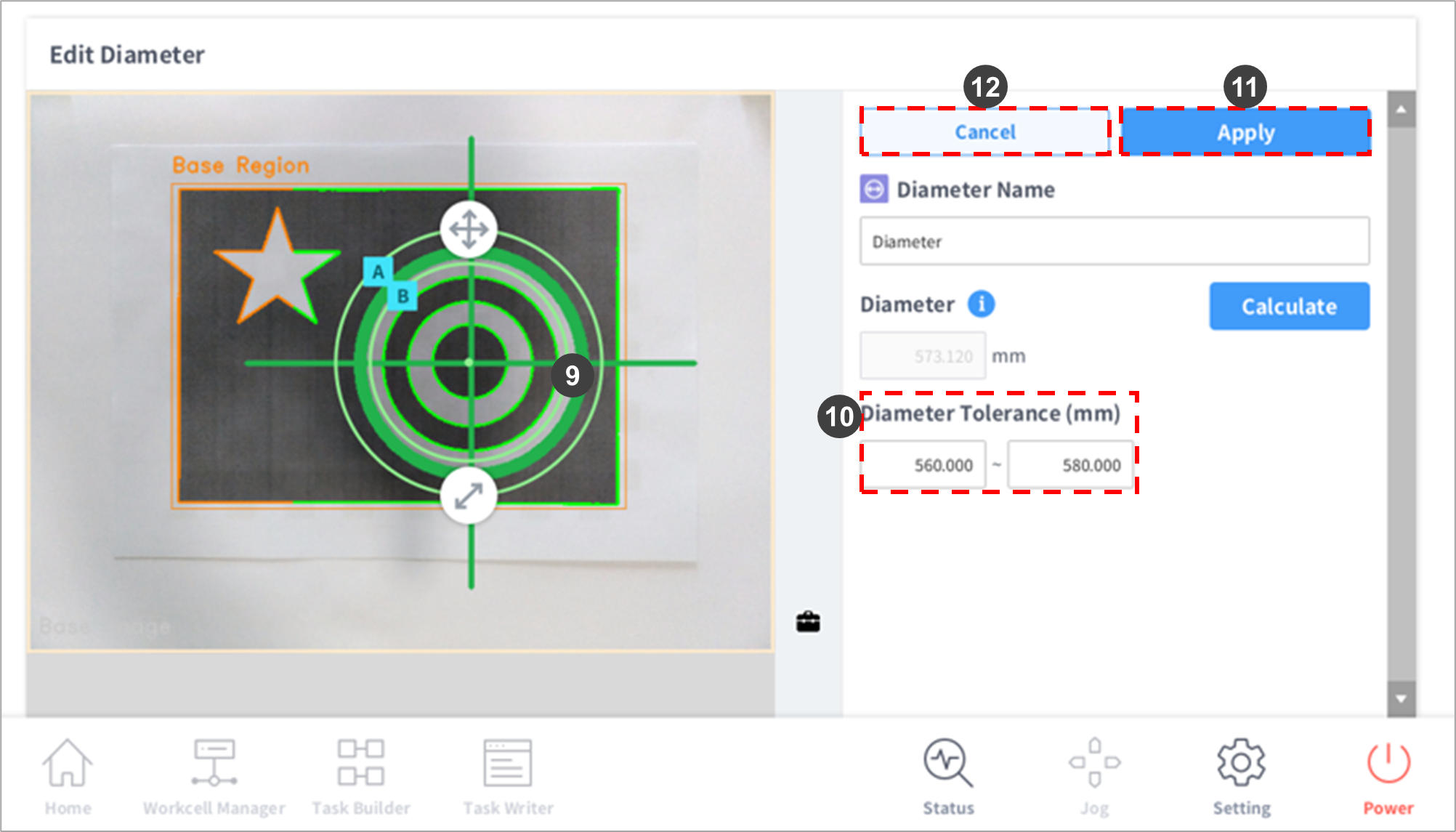
The Diameter Tool measures the diameter and the center point position of the measured circle. Align the circle center with the center of the circular item, position circle A outside the circular item to be measured, and position circle B inside the circular item. Press Calculate to measure the circle, and the diameter and center point of the circle are displayed. Adjust the acceptance range (Tolerance) of the check based on measured diameter values to set the diameter check.
|
No. |
Item |
Description |
|---|---|---|
|
1 |
Add Diameter Tool |
Adds a Distance Tool to the Vision Tool List. |
|
2 |
Edit |
A setting window of the job selected from the Vision Tool List is displayed. |
|
3 |
Delete |
The selected job from the Vision Job List is deleted. |
|
4 |
Move Teaching Area |
Press and hold the arrow to move the teaching area. |
|
5 |
Adjust Teaching Area Size |
Press and hold the arrow to adjust the teaching area size. |
|
6 |
Edit Job Name – Edit Window |
A virtual keyboard is displayed, and the job name can be edited.
|
|
7 |
Calculate |
Detects circles that exist between two teaching areas (A, B). Move circle A to be positioned outside the circular item, and move circle B to be positioned inside the circular item. Place the green center point in the center of the item. After calculation is performed, the circle between circle A and B is identified, and its diameter and center point positions are displayed. 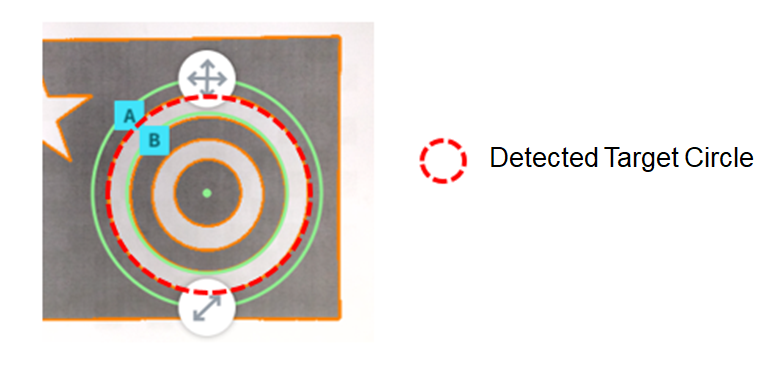
|
|
8 |
Diameter Display
|
Displays the diameter of the measured circle in the edit window. |
|
9 |
Circle Display
|
Displays the measured circle on the image. |
|
10 |
Diameter Tolerance Length Setting - Edit Window |
Configures the length threshold from the reference length value.
|
|
11 |
Apply |
Applies Vision Job settings. |
|
12 |
Cancel |
Cancels Vision Job Tool settings. |