-
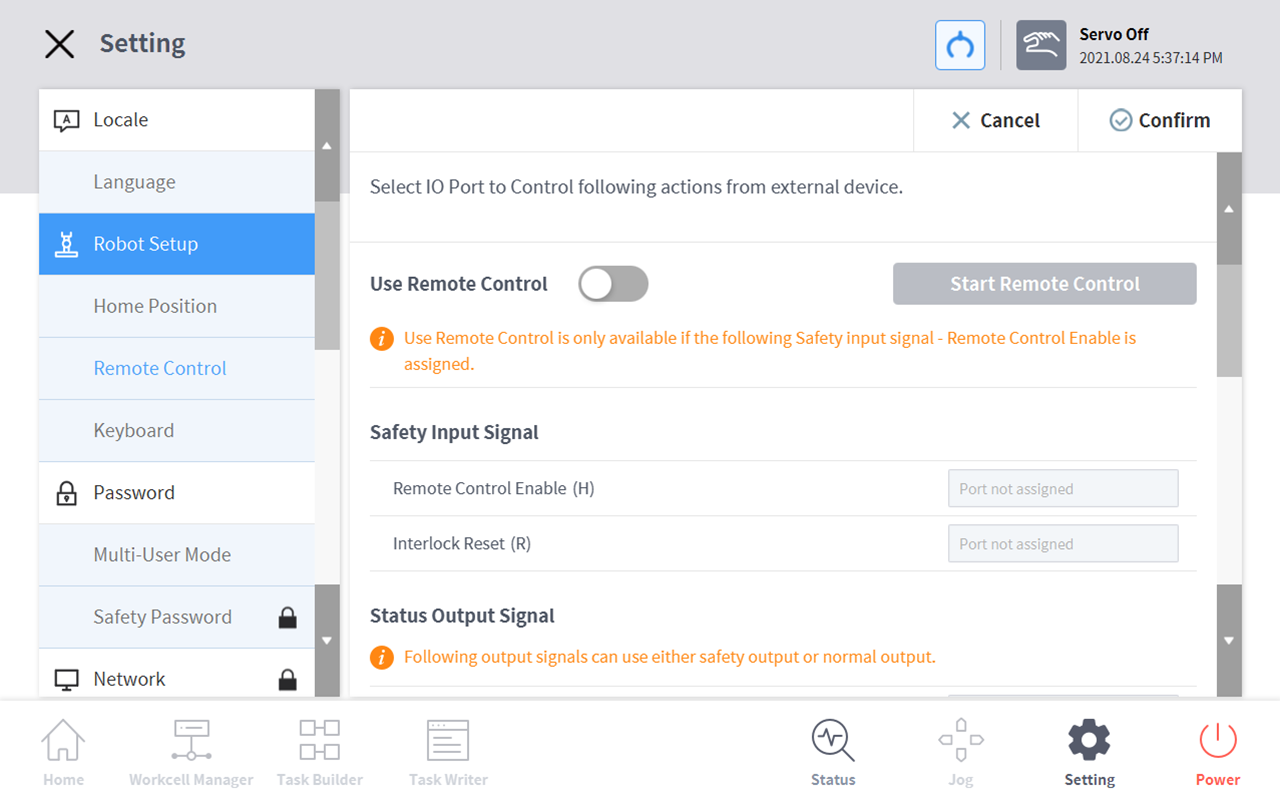
Select the Remote Control menu in the Setting > Robot Setup menu.
-
The current setting information is displayed in the setting management window.
-
-
Set Safety Input signal.
-
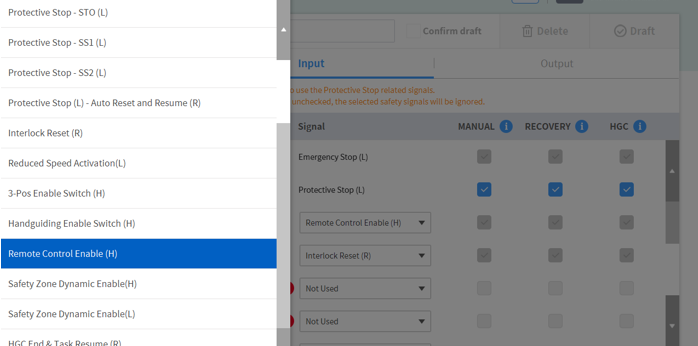
In the Workcell Manager > Safety I/O > Input Tab, select Edit> Port and set Remote Control Enable(H).
-
-
Set the Use Remote Control button to ON.
-
If the system is restarted with remote control set to ON, it boots up in remote control mode.

-
-
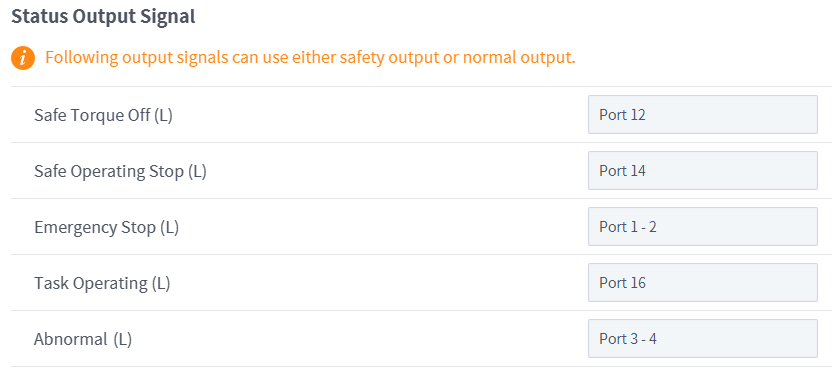
Enter the Status Output Signal selection value
-
Output signals can be set in Workcell Manager > Safety I/O output tab and Normal I/O output tab.
-
Safety I/O setting items
-
Emergency Stop (L)
-
Abnormal (L)
-
-
Normal I/O setting items
-
Safe Torque Off (L)
-
Safe Operating Stop (L)
-
Task Operating (L)
-
-
-
Enter Control Input Signal selection value
-
Remote control use button ON, cannot be set if the safety input signal is not set.
-
-
Enter Default Load Task selection values
-
Remote control use button ON, cannot be set if the safety input signal is not set.
-
-
Tap the Confirm button when complete.
-
This completes the environment settings for remote control.

-
-
To allow remote control using an external device, tap the Start Remote Control button to engage remote control mode.
-
Information on tasks to execute from the external device appears.
-
Motion inputs from the external device can only be executed if a green signal is displayed on the “Enable Remote Control” button.
-
If a red signal is displayed on the Enable Remote Control button, input an enable signal from the external device.
-
Note
-
If the Emergency Stop or Protective Stop occurs in Remote Control Mode, it is handled as follows:
-
Emergency Stop: An emergency stop popup is displayed. After removing the cause of emergency stop - pulling or twist the emergency stop switch for reset, the popup closes automatically.
-
Protective Stop causing the transition to Servo Off state: A red protective stop popup is displayed. If Servo On signal is entered after removing the cause of protective stop, the robot servo drives turn on and the popup closes automatically.
-
Protective Stop causing the transition to Interrupted state: A yellow protective stop popup is displayed. If Interlock Reset signal is entered after removing the cause of protective stop, the robot state changes to normal standby state – Manual Standby, Auto Standby, or HGC standby. For the safety violations where the cause of them cannot be removed without moving the robot, Clamping Escape by cockpit can be used.
-
For details on status for each mode, please refer to Status and Flange LED Color for Each Mode.
-
-
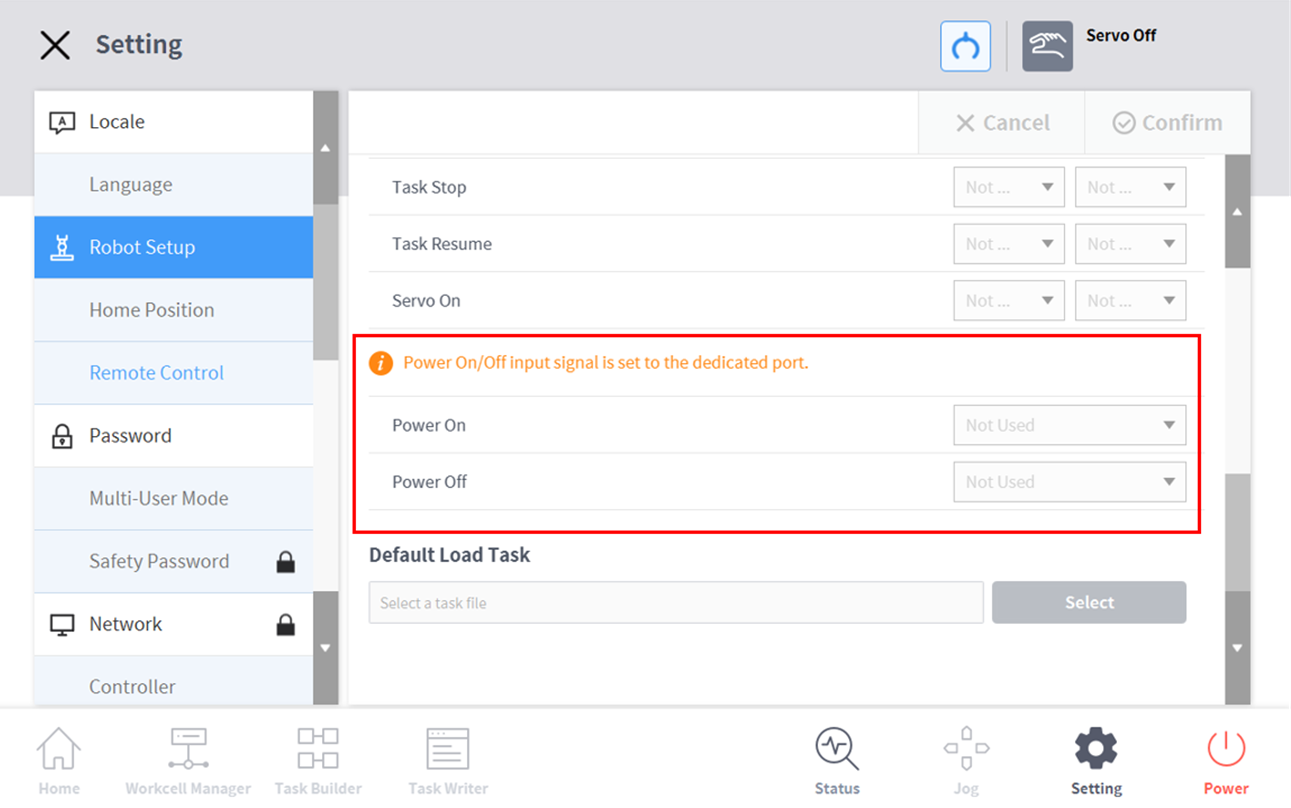
It is possible to turn ON/OFF the power of the robot by remote control setting
-
Tap the Settings button of the main menu and select Remote Control under Robot Settings.
-
Select the dedicated input port for remote control to use Power On or Power Off function.
-