Breadcrumbs

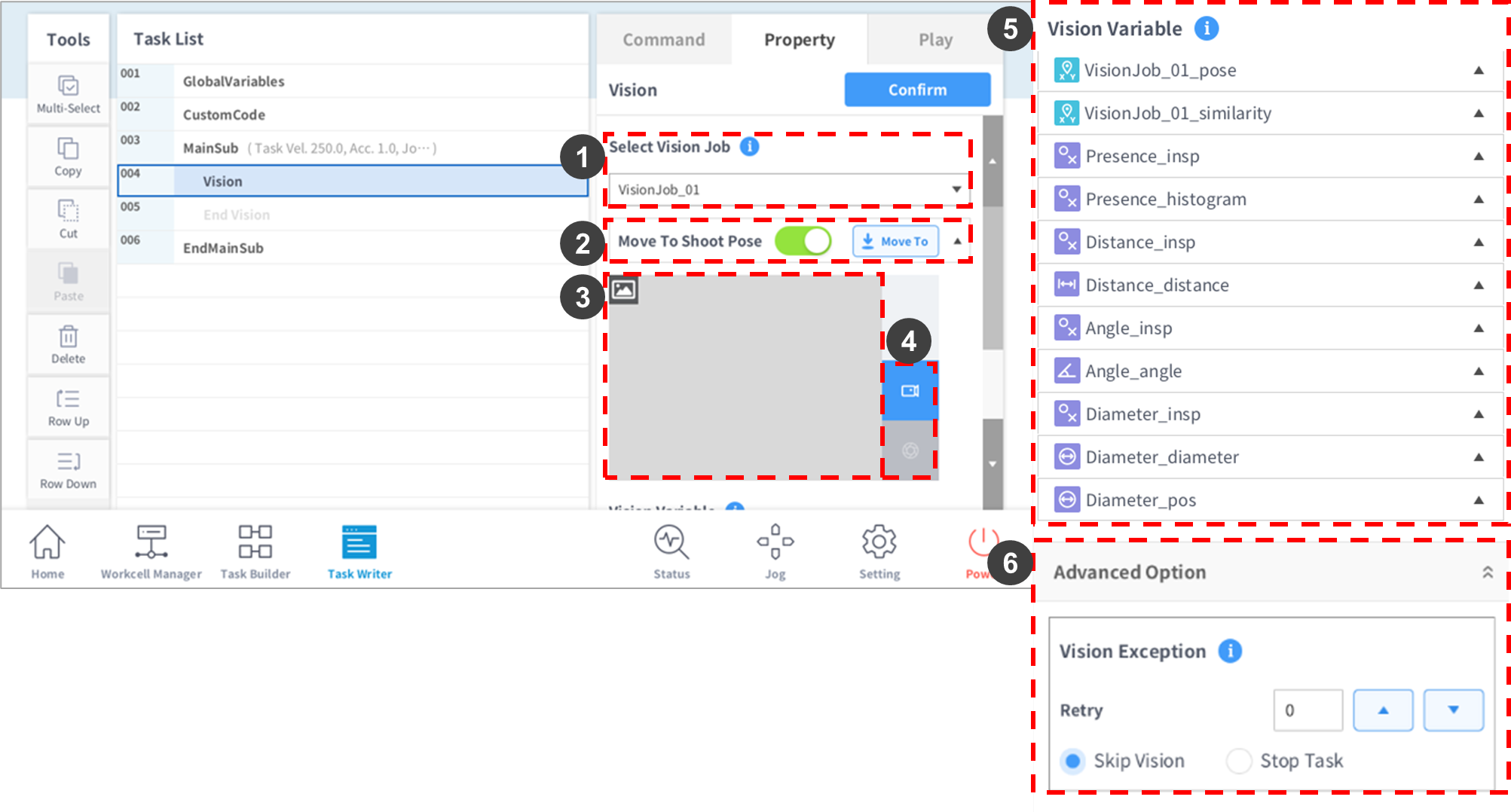
Vision Command Setting Options

image2021-11-26_11-5-36.png

No.

Item

Description

1

Select Vision Job

The Vision Job List configured in the Workcell Manager displays the image of the Vision Job selected from the popup list.

  • Selecting a Vision Job using Select Vision Job enables Vision-related functions.

  • The Vision Variables of Tools included in the Vision Job can be obtained.

A Vision Job can be selected.

2

Move to Shoot Pose

  • Move to the Shoot Pose of the job selected with Select Vision Job.

  • Disabling this option means that the Shoot Pose configured for the Vision Job will not be used.

3

Display Image

Default image, Live image and Shoot image are displayed.

4

image2021-11-12_15-43-44.png Live/

image2021-11-12_15-43-53.png Shoot

Tap the Live button to display the live image.

Tap the Shoot button to display the test result image.

  • Obtains data of the Vision Tool added to the Vision Job with the Workcell Manager, and adds it to the Vision Variable list.

Live mode ends after 5 minutes of no action.

5

Vision Variable

  • Displays the data list of the Vision Tools added to the Vision Job.

  • Press each item to view the values of the current Tool.

6

Advanced Option > Vision Exception

Select an action if Vision measurement fails.

  • Retry: Set the number of Retry attempts if measurement fails. (Initial measurement + up to three retry attempts)

  • Skip Vision: Skips the failed measurement stage and retries measurements according to the number of Retry attempts.

  • Stop Task: Stops the Vision Task if measurement fails.


If an object is measured after the Shoot button is clicked, the object must not move until MoveL completes Get_pose. If the object is moved before Get_pose is complete, the robot will not move to a desired point during Vision offset.