
To set space limits for the robot, tap the 
-
Enter the Workcell Name in the Workcell Name field on the top of the Workcell Setting screen.
-
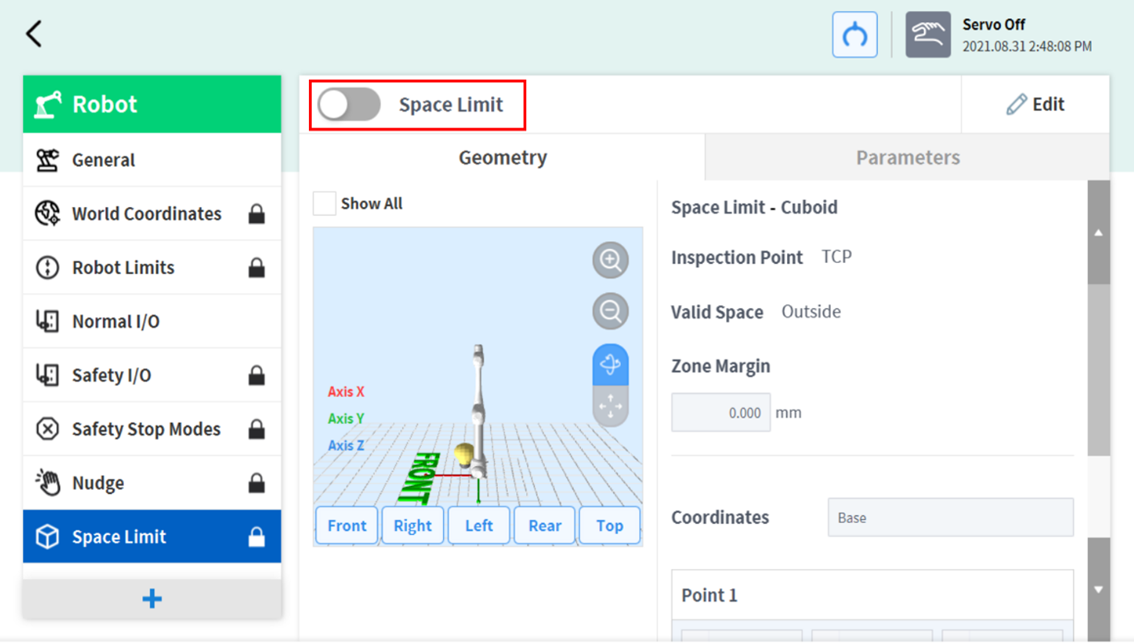
Set the pose information according to the Space Limit shape along with the Inspection Point, Valid Space and Zone Margin in the Geometry tab.
-
Set the Dynamic Zone Enable and Advanced Options in the Parameters tab, and press Draft.
-
Verify that all parameters displayed are the same as what are Intended to be set, then check Confirm draft and press Confirm
-
Press the Activate Toggle button to apply the Space Limit.
Note
There are Zone Margin defaults depending on the setting methods.
-
If the tool shape is set and Body volume check is not selected, TCP margin is 0 mm.
-
If the tool shape is set and Body volume check is selected, TCP margin is 0 mm.
-
If the tool shape is not set and Body volume check is not selected, TCP margin is 0 mm.
-
If the tool shape is not set and Body volume check is selected, TCP margin is 60 mm.