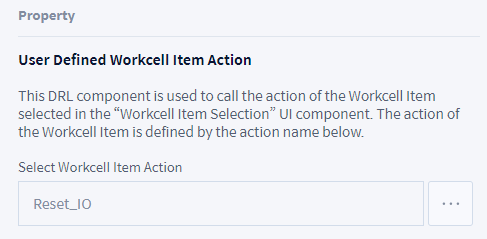
Check the below for the details on the function of each component.
Mandatory WCI Action
-
Mandatory function gripper related to WCI → Grasp/Release
-
It is the default setting: The contents of the Grasp/Release functions vary according to the WCI selected.
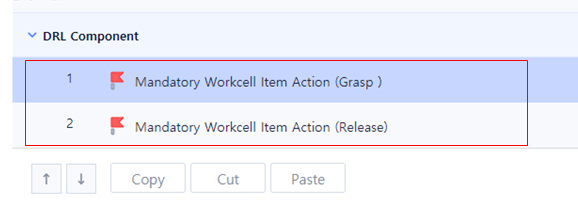
Global Function
Add 3 functions to skill after registering as a global function and connect each user input value to the ‘Parameter’ values.
Check the following for the details on the Global Function and example codes.
-
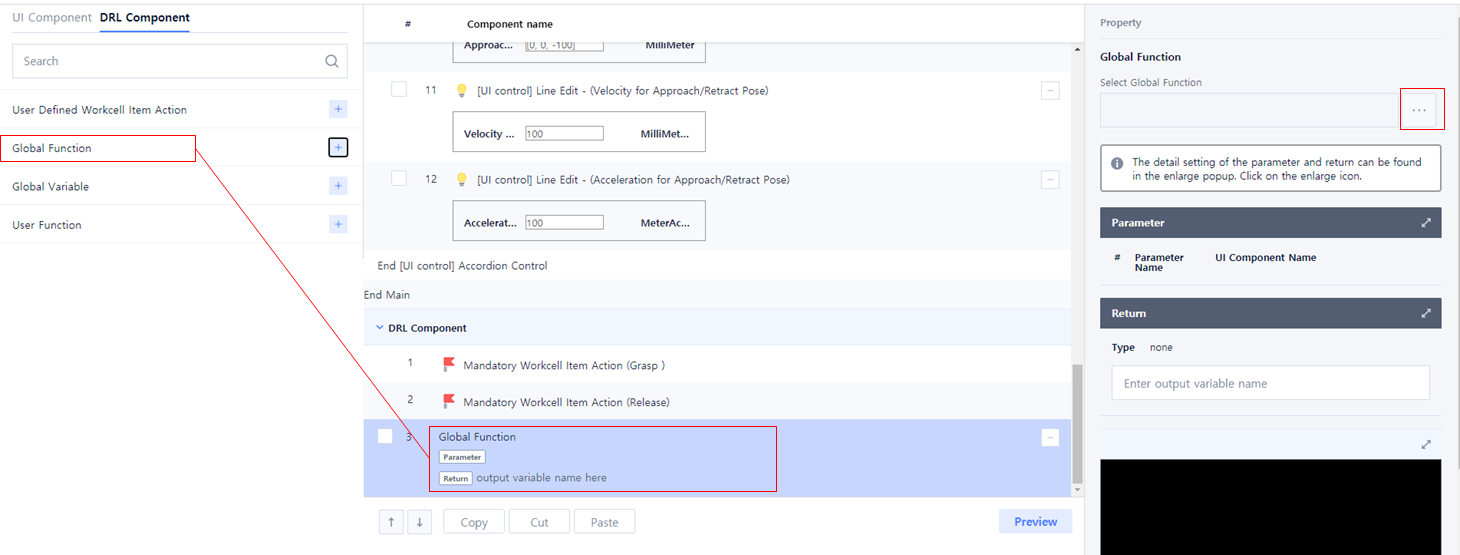
Add a Global Function.
-
Click ‘...’ button of Select Global Function in Property of Global Function.
-
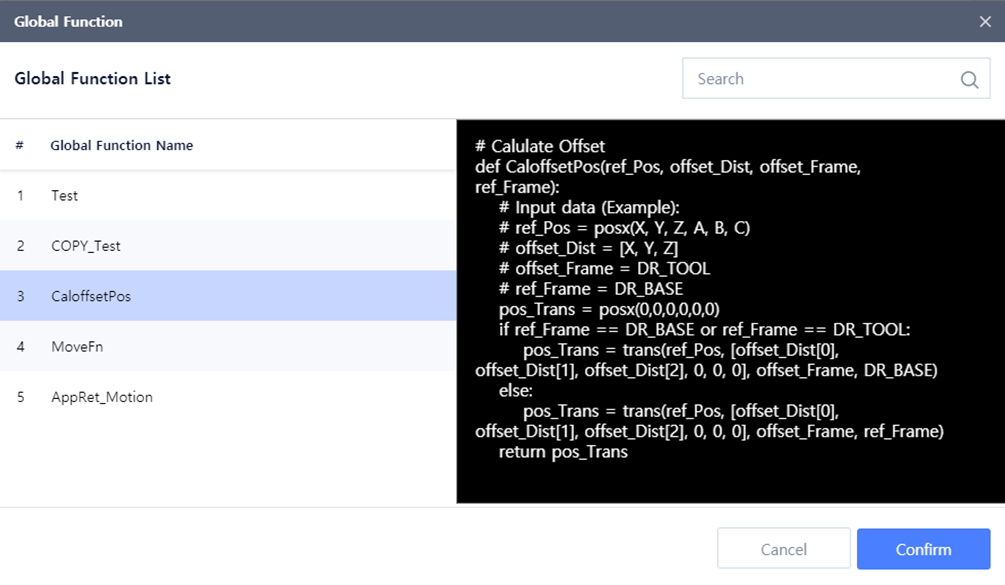
Select ‘CaloffsetPos’ from Global Function List and click Confirm button.
-
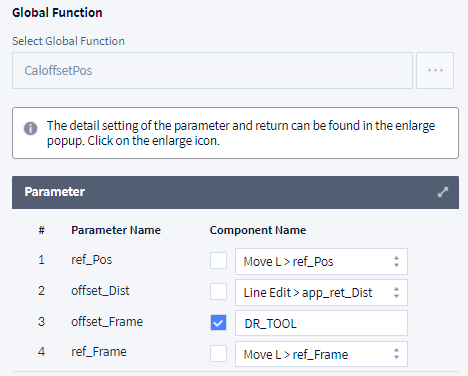
Connect the user input value to the ‘Parameter’ of the selected Global Function.
-
When changing the Global Function, the connection between 'Parameter' and user input is initialized and must be reconnected.
-
When editing the Global Function code, the Global Function previously registered in the DRL Component is maintained with the previous version code, and the 'Parameter' values are also maintained
-
-
To apply changes to the previously registered Global Function, reload the Global Function.
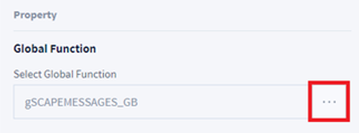
If you press the '…' button, a popup to select a global function is displayed.If you select Global Function again in the pop-up, it is updated with the changed Global Function.
-
ref_Pos: Move L > ref_Pos
-
offset_Dist: Line Edit > app_ret_Dist
-
offset_Frame: DR_TOOL(Can be input after checking the check box)
-
Move L > ref_Frame
-
-
After adding the Global Function, select ‘MoveFn’ from the Global Function List in the same way as in No. 2~3 and click Confirm button.
-
Connect the user input value to the ‘Parameter’ of the selected Global Function.
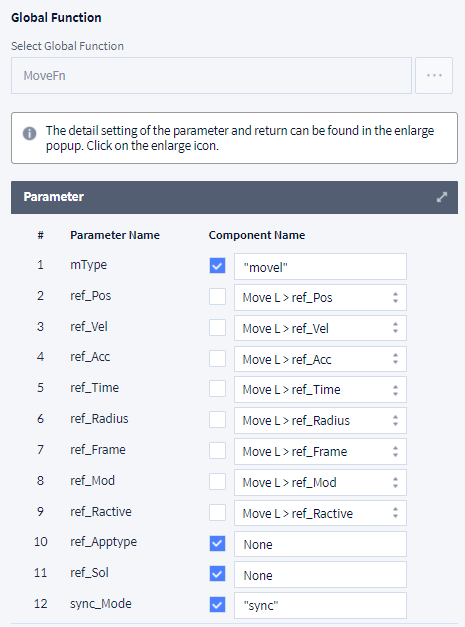
mType: "movel”(Can be input after checking the check box)ref_Pos: Move L > ref_Posref_Vel: Move L > ref_Velref_Acc: Move L > ref_Accref_Time: Move L > ref_Timeref_Radius: Move L > ref_Radiusref_Frame: Move L > ref_Frameref_Mod: Move L > ref_Modref_Ractive: Move L > ref_Ractiveref_Apptype: None(Can be input after checking the check box)ref_Sol: None(Can be input after checking the check box)sync_Mode: "sync”(Can be input after checking the check box) -
After adding the Global Function, select 'AppRet_Motion' from the Global Function List in the same way as in No. 2~3 and click Confirm button.
-
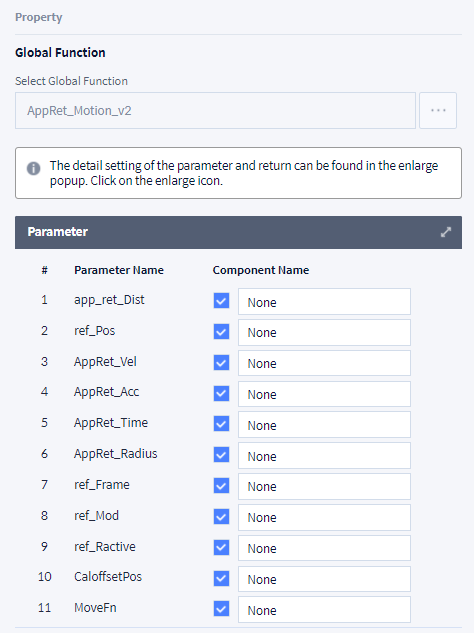
Connect the user input value to the ‘Parameter’ of the selected Global Function. Set the Component Name of all 'Parameter' to 'None'.
In the case of a global function in which all arguments are connected in the user function corresponding to the main function, it is okay to enter all as ‘None’ after checking the check box.

User Function
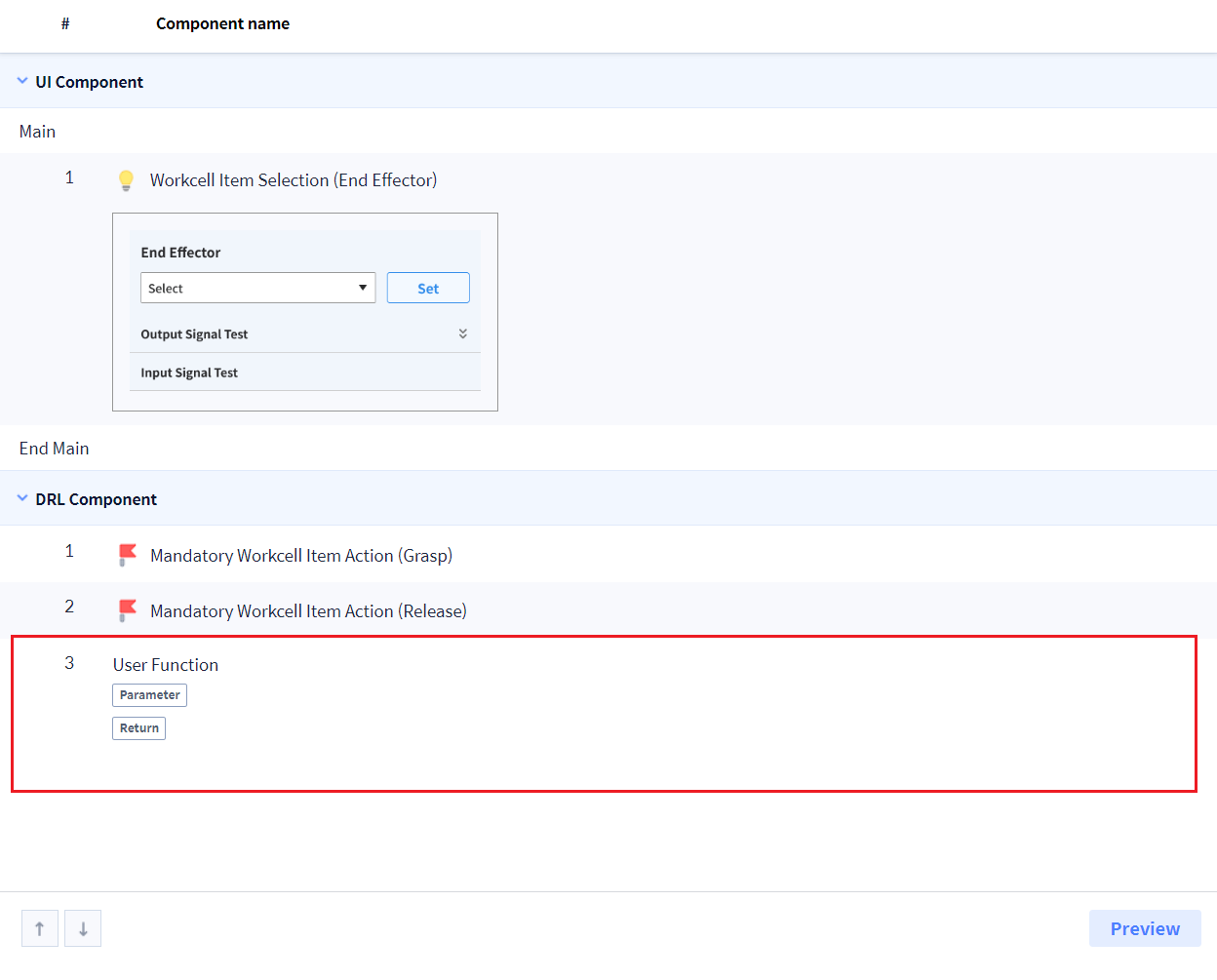
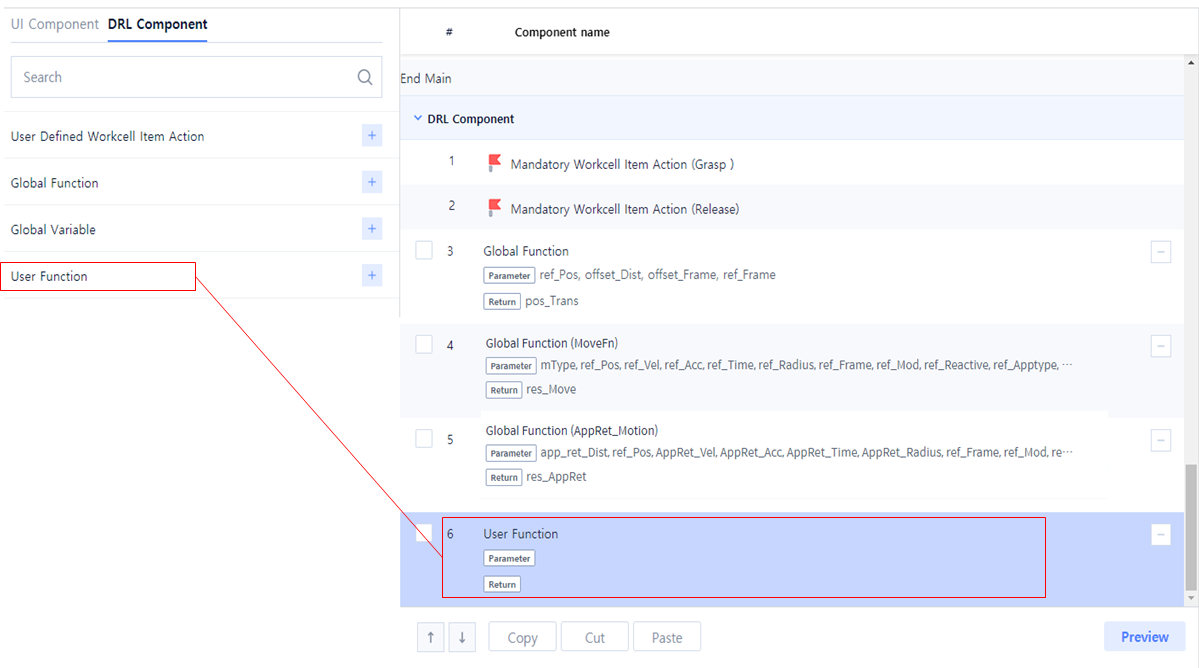
In order for the created skill to run normally, a User Function that plays the role of the Main function must be added. User Function is configured as a default settings.
Fill out the main function of ‘Sample_Pick’ in the User Function. The Pick function planned in Skill Planning is implemented as a User Function.
-
Basically, It is needed to add a User Function settings.
-
Enter the ‘User Function Name’ in Property.
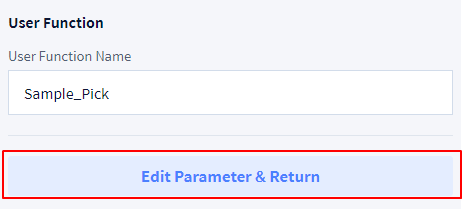
User Function Name: Sample_Pick -
Click ‘Edit Parameter & Return’ button.
-
Click ‘Add New Parameter’ button.

-
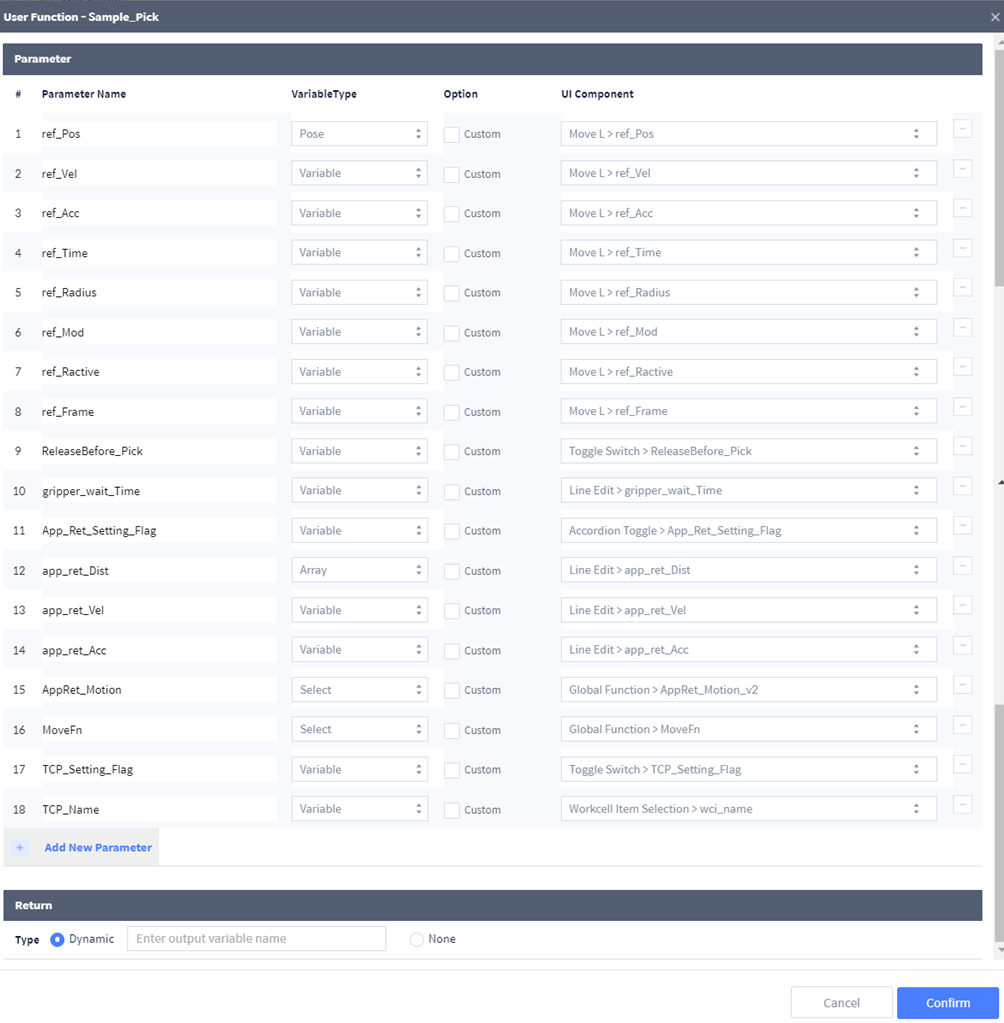
Enter ‘Parameter’ values as the following and click the Confirm button.
-
In the case of parameter connected to UI component (such as TCP_Name), connection is possible only when the Variable Name of the UI component is set. For details, see Skill Setting.
-
The name of the parameter and the variable name of the UI component do not have to be the same.
-
The global function must be connected to the parameter of the user function in the same way as the user input value (refer to 'AppRet_Motion', 'MoveFn' in the figure below).
-
It is recommended to keep the value set as the default value (Select) for the Variable Type of the parameter.
-
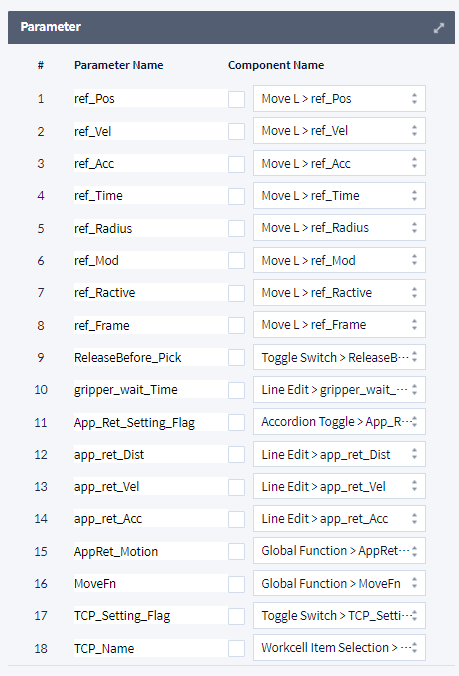
Parameter Name: ref_PosVariable Type: PoseUI Component: Move L > ref_Pos
-
Parameter Name: ref_VelVariable Type: VariableUI Component: Move L > ref_Vel
-
Parameter Name: ref_AccVariable Type: VariableUI Component: Move L > ref_Acc
-
Parameter Name: ref_TimeVariable Type: VariableUI Component: Move L > ref_Time
-
Parameter Name: ref_RadiusVariable Type: VariableUI Component: Move L > ref_Radius
-
Parameter Name: ref_ModVariable Type: VariableUI Component: Move L > ref_Mod
-
Parameter Name: ref_RactiveVariable Type: VariableUI Component: Move L > ref_Ractive
-
Parameter Name: ref_FrameVariable Type: VariableUI Component: Move L > ref_Frame
-
Parameter Name: ReleaseBefore_PickVariable Type: VariableUI Component: Toggle Switch > ReleaseBefore_Pick
-
Parameter Name: gripper_wait_TimeVariable Type: VariableUI Component: Line Edit > gripper_wait_Time
-
Parameter Name: App_Ret_Setting_FlagVariable Type: VariableUI Component: Accordion Toggle > App_Ret_Setting_Flag
-
Parameter Name: app_ret_DistVariable Type: ArrayUI Component: Line Edit > app_ret_Dist
-
Parameter Name: app_ret_VelVariable Type: VariableUI Component: Line Edit > app_ret_Vel
-
Parameter Name: app_ret_AccVariable Type: VariableUI Component: Line Edit > app_ret_Acc
-
Parameter Name: AppRet_MotionVariable Type: Select(선택 없음)UI Component: Global Function > AppRet_Motion_v2
-
Parameter Name: MoveFnVariable Type: Select(선택 없음)UI Component: Global Function > MoveFn
-
Parameter Name: TCP_Setting_FlagVariable Type: VariableUI Component: Toggle Switch > TCP_Setting_Flag
-
Parameter Name: TCP_NameVariable Type: ArrayUI Component: Workcell Item Selection > wci_name
-
-
Parameter is registered as below.
-
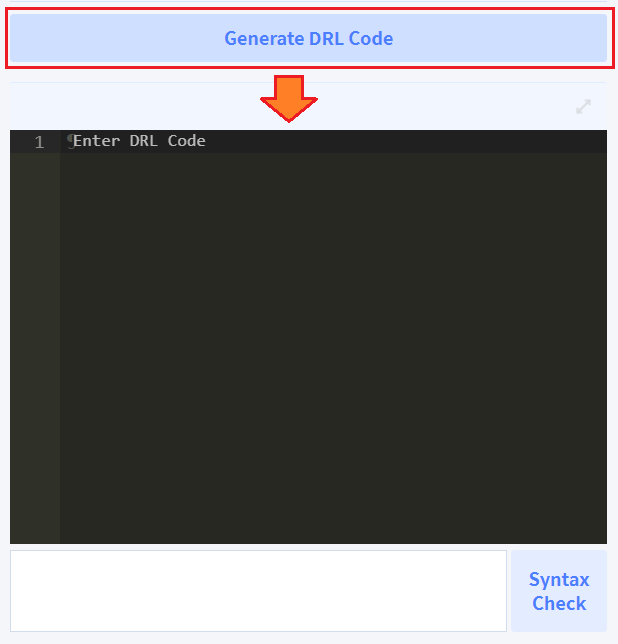
Generate the function automatically by clicking the 'Generate DRL Code' button.
-
Enter DRL ‘Sample_Pick’ Code in ‘Enter DRL Code’ input window as below.
Python# Sample Pick Skill def Sample_Pick(ref_Pos, ref_Vel, ref_Acc, ref_Time, ref_Radius, ref_Mod, ref_Ractive, ref_Frame, ReleaseBefore_Pick, gripper_wait_Time, TCP_Setting_Flag, TCP_Name, App_Ret_Setting_Flag, app_ret_Dist, app_ret_Vel, app_ret_Acc, AppRet_Motion, MoveFn): # Initial setting if TCP_Setting_Flag == True: set_tcp(TCP_Name) app_ret_Time = ref_Time app_ret_Radius = ref_Radius ref_Apptype = None ref_Sol = None if App_Ret_Setting_Flag == False: app_ret_Dist = [0, 0, 0] app_ret_Vel = ref_Vel app_ret_Acc = ref_Acc # Approach/Retract Motion Setting if App_Ret_Setting_Flag == True: AppRet_Motion(app_ret_Dist, ref_Pos, app_ret_Vel, app_ret_Acc, app_ret_Time, app_ret_Radius, ref_Frame, ref_Mod, ref_Ractive, CaloffsetPos, MoveFn) # ReleaseBefore_Pick Setting if ReleaseBefore_Pick == True: Release() wait(gripper_wait_Time) # Pick Motion MoveFn(mType, ref_Pos, ref_Vel, ref_Acc, ref_Time, ref_Radius, ref_Frame, ref_Mod, ref_Ractive, ref_Apptype, ref_Sol, sync_Mode) Grasp() wait(gripper_wait_Time) # Retract/Retract Motion Setting if App_Ret_Setting_Flag == True: AppRet_Motion(app_ret_Dist, ref_Pos, app_ret_Vel, app_ret_Acc, app_ret_Time, app_ret_Radius, ref_Frame, ref_Mod, ref_Ractive, CaloffsetPos, MoveFn)
User Defined Workcell Item Action (Optional)
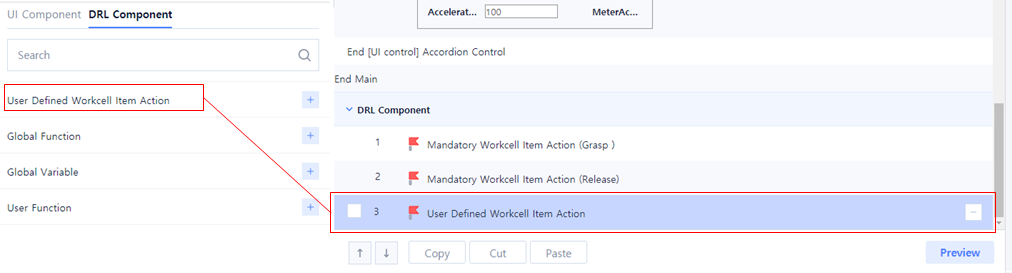
You can add option functions related to the WCI with User Defined Workcell Item Action. The next example demonstrate how to add Rest+IO function, a special function of gripper.
-
Add a User Defined Workcell Item Action.
-
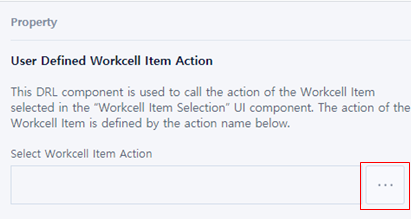
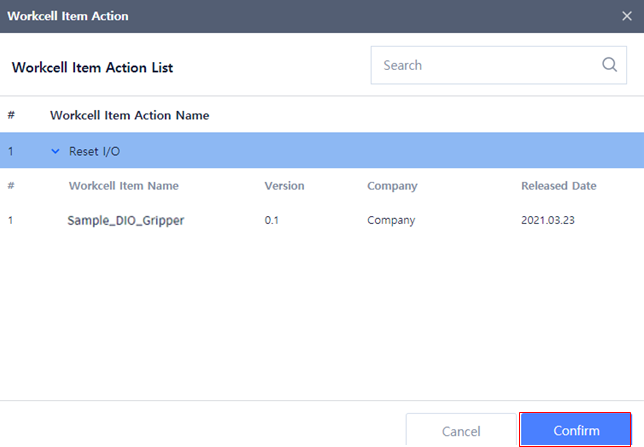
Click ‘...’ button in Property.
-
Select 'Reset I/O’ and click Confirm button.
-
User Defined Workcell Item Action is registered as the following.