Though the homing motion is one of the manual motions, it has its own menu because it is used frequently.
Select Control on the main menu and click the Homing button.

Homing
Select Homing in the Homing Motion list. Then, the current joint angles are displayed and updated in 100 milliseconds.
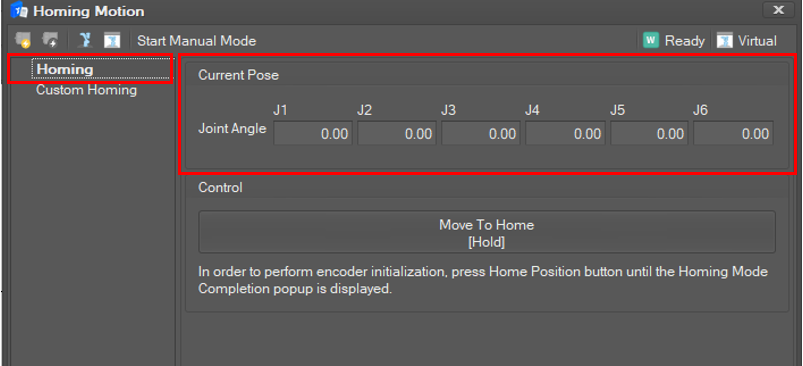
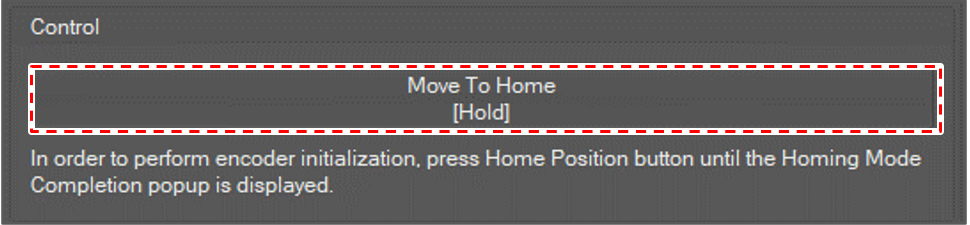
If you click and hold the Move To Home button, the robot will move to the home position until you release the button.
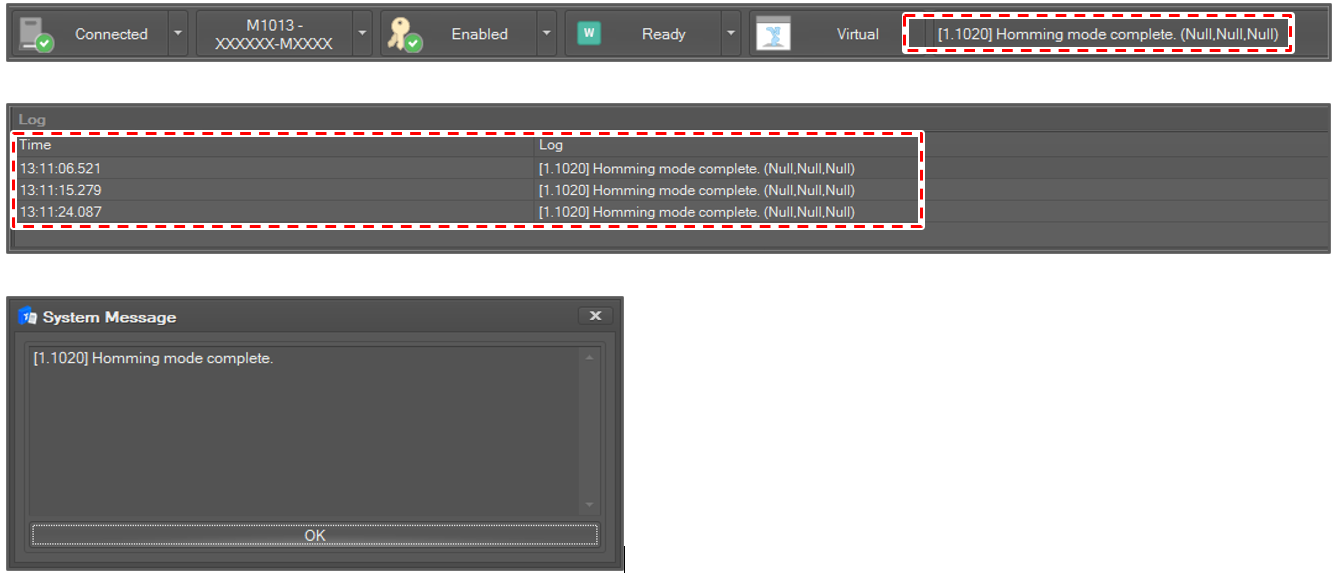
If homing is completed, you can see the “Homing mode complete” message on the Monitoring bar or message pane.
Custom Homing
Select Custom Homing in the Homing Motion list. Then, the current joint angles are displayed and updated in 100 milliseconds.
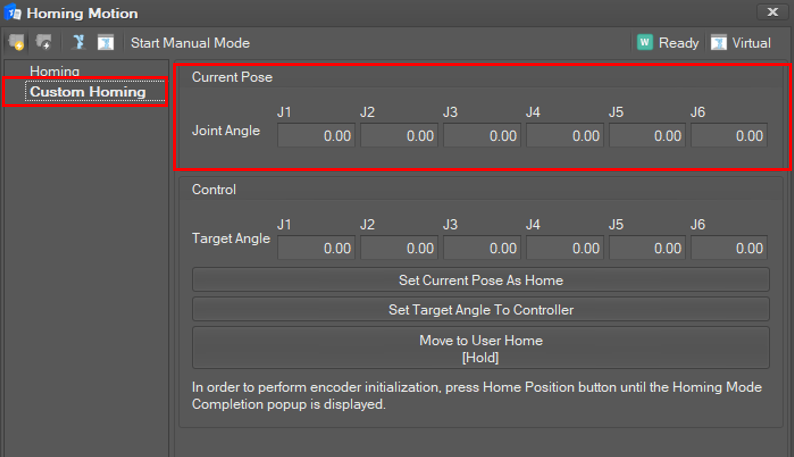
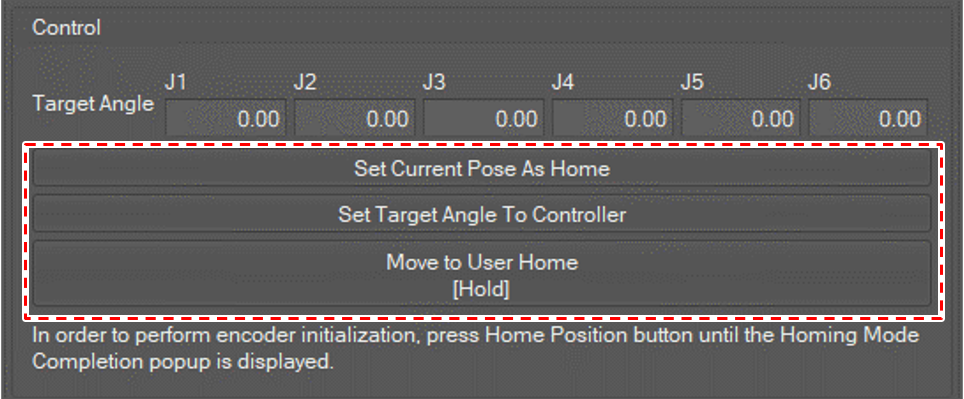
To set the current joint angle of the robot to the user's home, do the following.
-
Click the Set Current Pose as Home button to set the current pose to the custom home position.
-
Click the Set Target Angle to Controller button to apply to the controller.
-
If you click and hold the Move to user Home button, the robot will move to the custom home position until you release the button.
-
If homing is completed, you can see the “Homing mode complete” message on the Monitoring bar or message pane like Homing.