
You can simulate the robot motion by using the virtual controller.
Connect to the virtual controller
Before running the virtual controller, you must connect to the virtual controller.
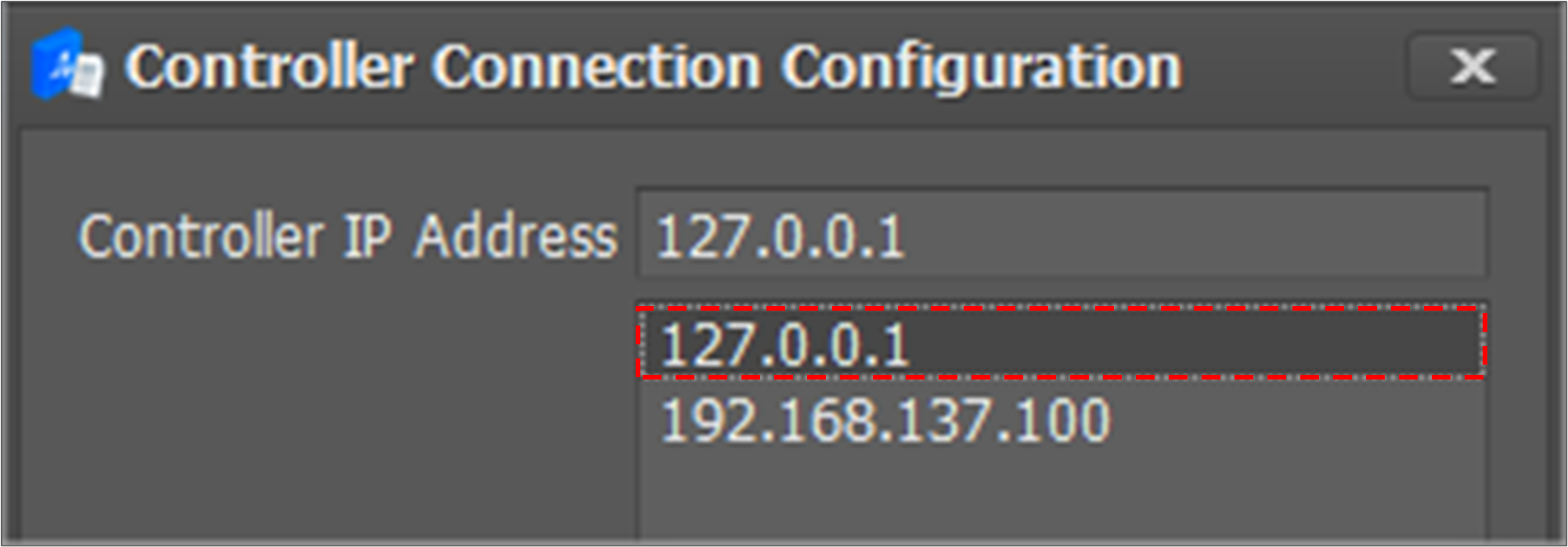
To connect to the virtual controller, change the controller IP address to 127.0.0.1 and try connection.
Or, if you select the simulator in the connection target, it will be connected to the simulator automatically without any separate IP setting.
To change the controller IP address,
-
Select Home on the main menu and click the Setting button.
-
Select the address for the virtual controller in the connection list and click the Apply button.
Run the virtual controller
To run the virtual controller, select Home on the main menu and click the Run Simulator button.

The virtual controller runs in the background. When the controller starts, the running status is updated.

Set the robot model type
Virtual controller’s robot model is set to M1013 by default.
To change the robot model type, select Home on the main menu and click the Set Robot Type menu, and then select a robot model.

Close the virtual controller
To close the virtual controller, select Home on the main menu and click the Close Simulator button.
